
Getting started · 2 minutes read
Log in and find your way around the customer portal
The most important menu items, the language selection and the difference between company access and employee access.
Open customer login
Open the main website and select Customer Login. Log in with your company email address and password. This access is intended for administration.
Read overview
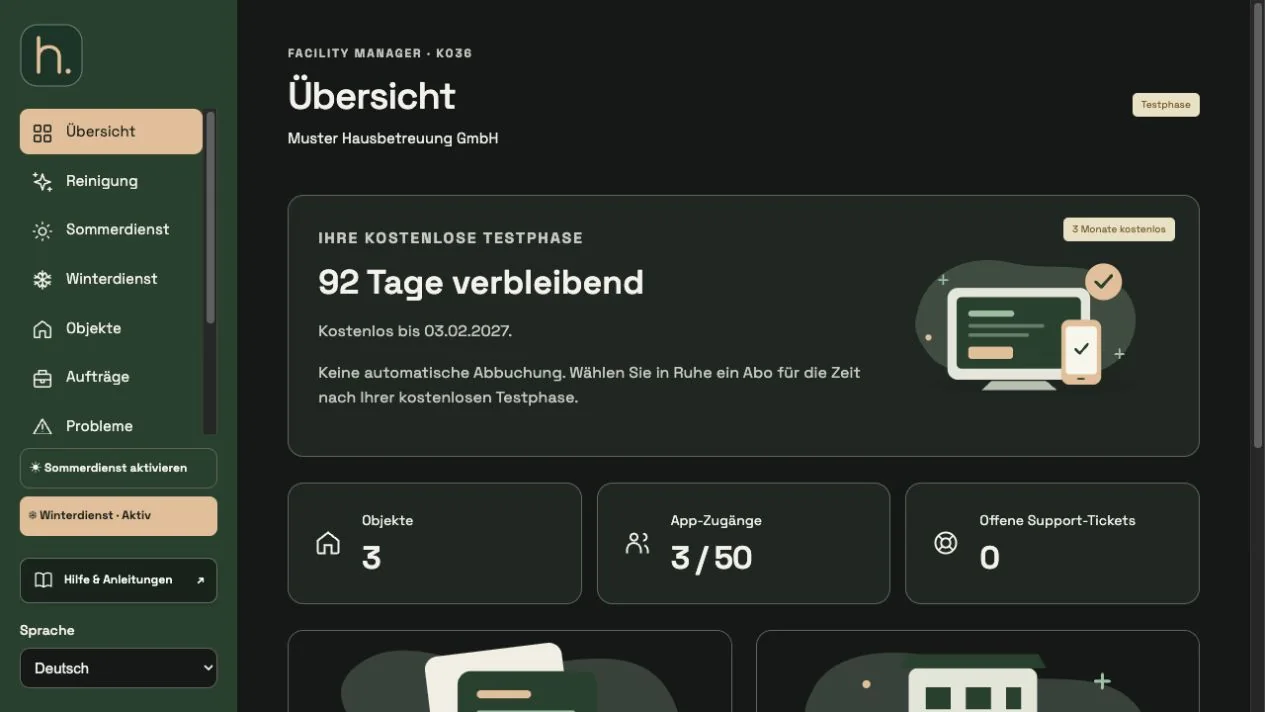
The overview shows your company area, the test or subscription situation as well as property, employee and support information. The large tiles lead to the respective areas.
Use menu
On the links you will find cleaning, summer service, winter service, properties, orders, problems, jobs, employees and settings. Hidden services can be activated under Settings → Services.
Change language
The language selection is at the bottom of the menu. It changes the interface of your company area. An employee's app language can differ and can be set separately.
Navigate on your smartphone
On narrow screens, open the menu using the Menu button. The same management functions can also be accessed in the mobile customer portal.
Sign out specifically
Open Settings and scroll to the Account section at the bottom of the page. Select Sign out to end your session. User details and photo storage are no longer shown at the bottom of the sidebar. Employees use their own full username, including the customer number, to sign in to the app rather than your administrator account.
Frequently asked questions
A menu item is missing. What can I check?
Check whether you are logged in as an administrator and whether the service in question is activated under Settings → Services.