
Settings · 2 minutes reading time
Set design colors and your own logos
Design your portal, employee app and documents with templates, custom colors and two separate logo positions.
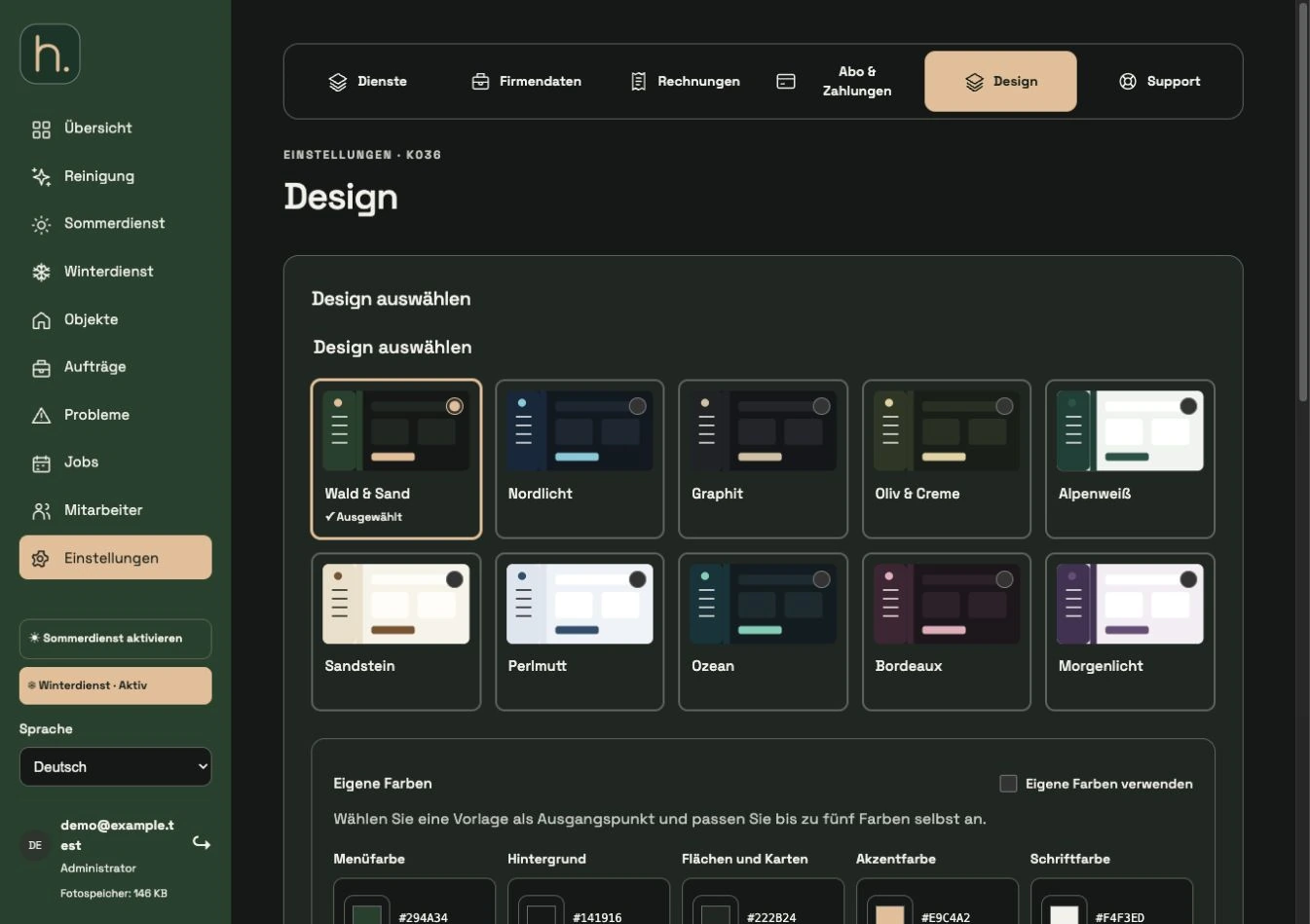
Select design template
Open Settings → Theme and choose one of the offered color templates as a starting point. The preview helps with comparison.
Activate custom colors
If you want to design yourself, check Use your own colors. You can choose menu color, background, areas and maps, accent color, and font color.
Save design
Check the preview and click Save Theme. Contrast colors are adjusted to be readable if necessary. Nevertheless, check your own most important views.
Set portal logo
Under Your logos, select Standard logo, Own logo or No logo for logo in the customer portal. Under My Logo, upload the desired file and click Save Logo.
Set app logo separately
Repeat the selection for Logo in the Employee app. This position appears in the greeting; it can be chosen independently of the portal logo. Select
Check file format and documents
JPG, JPEG, JPE and PNG up to 5 MB are supported. A square logo, around 512 × 512 pixels, is particularly suitable; rectangular logos are fully fitted. Reports and winter route PDFs take over the saved company appearance.
Frequently asked questions
Can I hide the logo completely?
Yes. The No Logo option is available for both intended positions. You don't need to upload your own logo.