
Photos & reports · 2 minutes reading time
View photo receipts in the customer portal
Check photos with date, time and employee and download individual images or all images of a job.
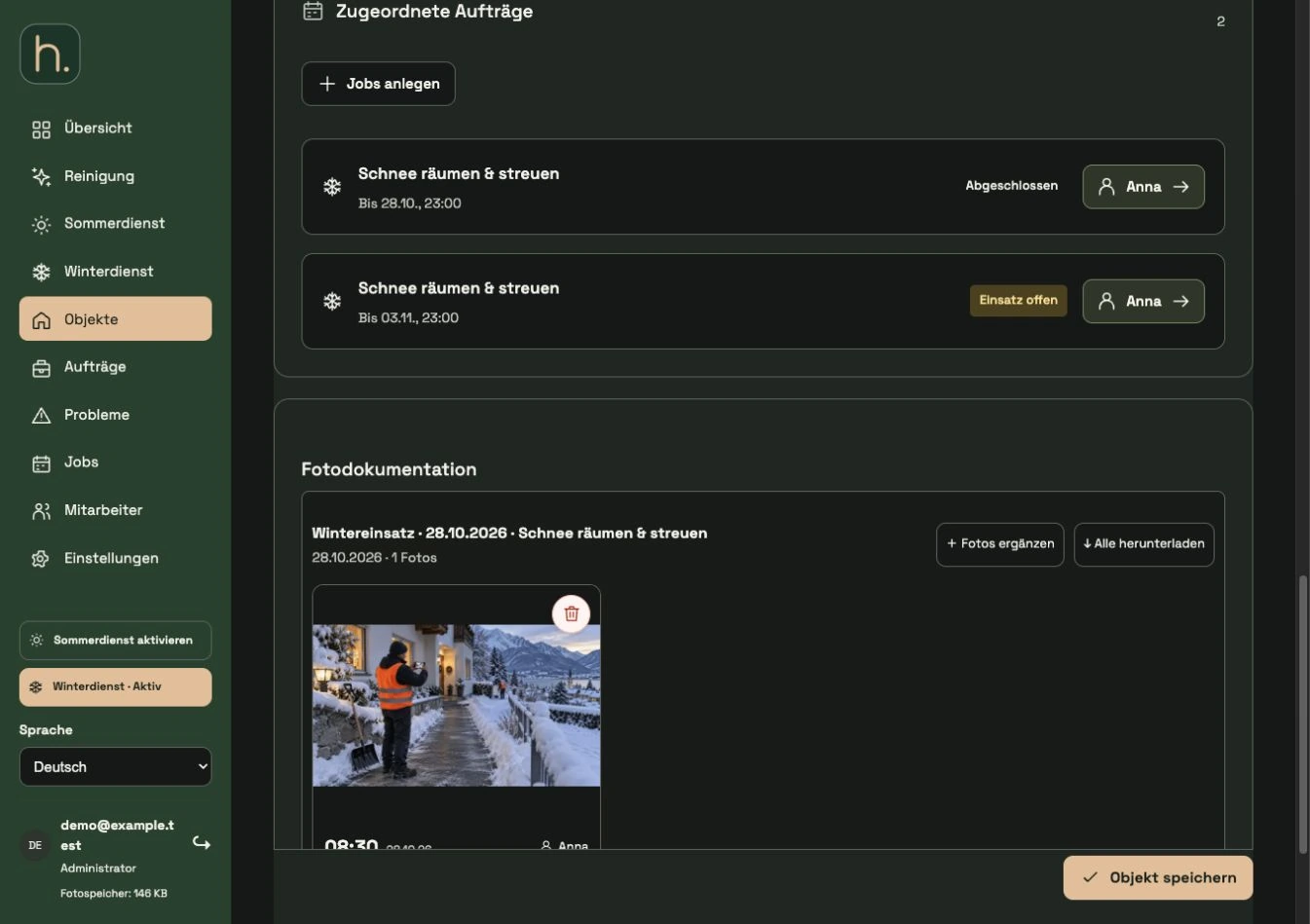
Open property
Find the property and open editing. Go to the Photo Documentation section. The permanent property plans are in a different area.
Select order
The photos are grouped according to the associated works. Check the activity and date so that you are viewing the correct evidence for an assignment.
Read date, time and employee
Below the photo you will see the recorded time, date and name of the uploading employee. This information helps assign the evidence.
Enlarge photo
Open the image via Preview to check details. Then return to the property view.
Download individually or collectively
Use Single Image to download the photo in question. Download all downloads the images from the selected job collectively as an archive.
Add or remove if necessary
As an administrator, you can add additional documents via Add Photos. The red trash can symbol at the top of the photo specifically removes this receipt. Check beforehand whether the recording is correct and the consequences for the order status.
Frequently asked questions
Are property plans and photographic evidence the same thing?
No. Property plans permanently explain the work area. Photo evidence documents the actual work performed on a specific job.