
Employee app · 2 minutes reading time
Solve common problems in the employee app
Check missing orders, device bindings, camera and photo submission step by step.
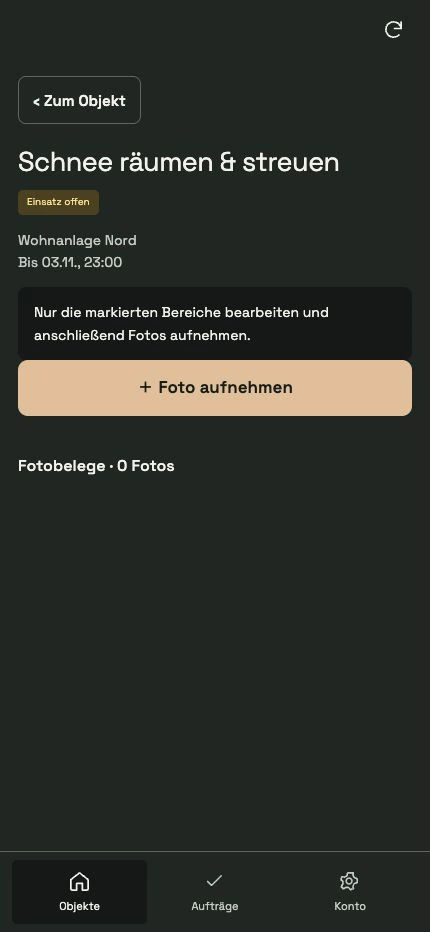
Check correct company access
Open account and check company and username. If multiple accesses are saved, another company may be active at the moment.
Check property and job assignment
The administration controls the general property assignment and the person responsible for the specific job. Also check active seasonal service.
Refresh view
Use the refresh icon in the top right. If a new interface doesn't appear, close the app completely and reopen it.
Clear device lock
If access is already tied to another cell phone, the administration must use Deregister Cell Phone for exactly this employee. Changing your account does not circumvent this obligation.
Check camera and internet
Check the camera permissions in the phone's system settings and a working internet connection. Allow an ongoing photo upload to complete first.
Report errors specifically
Note the exact message, the affected order and the time. If the problem persists, contact your administration or software support.
Frequently asked questions
Why shouldn't I change the account immediately if the upload error occurs?
Pending or failed photos belong to the current company access and must first be successfully uploaded or deliberately removed.