
Properties & Customers · 2 minutes reading time
Correct address and map location
Find a changed address again or manually set the correct point on the map.
Check address fields
Open the property and check the street, house number, postal code and city. Missing house numbers or an incorrect location can lead to an inaccurate match.
Search address again
After an address correction, use Search address again. The function saves the changes and allows the location to be determined again based on the address.
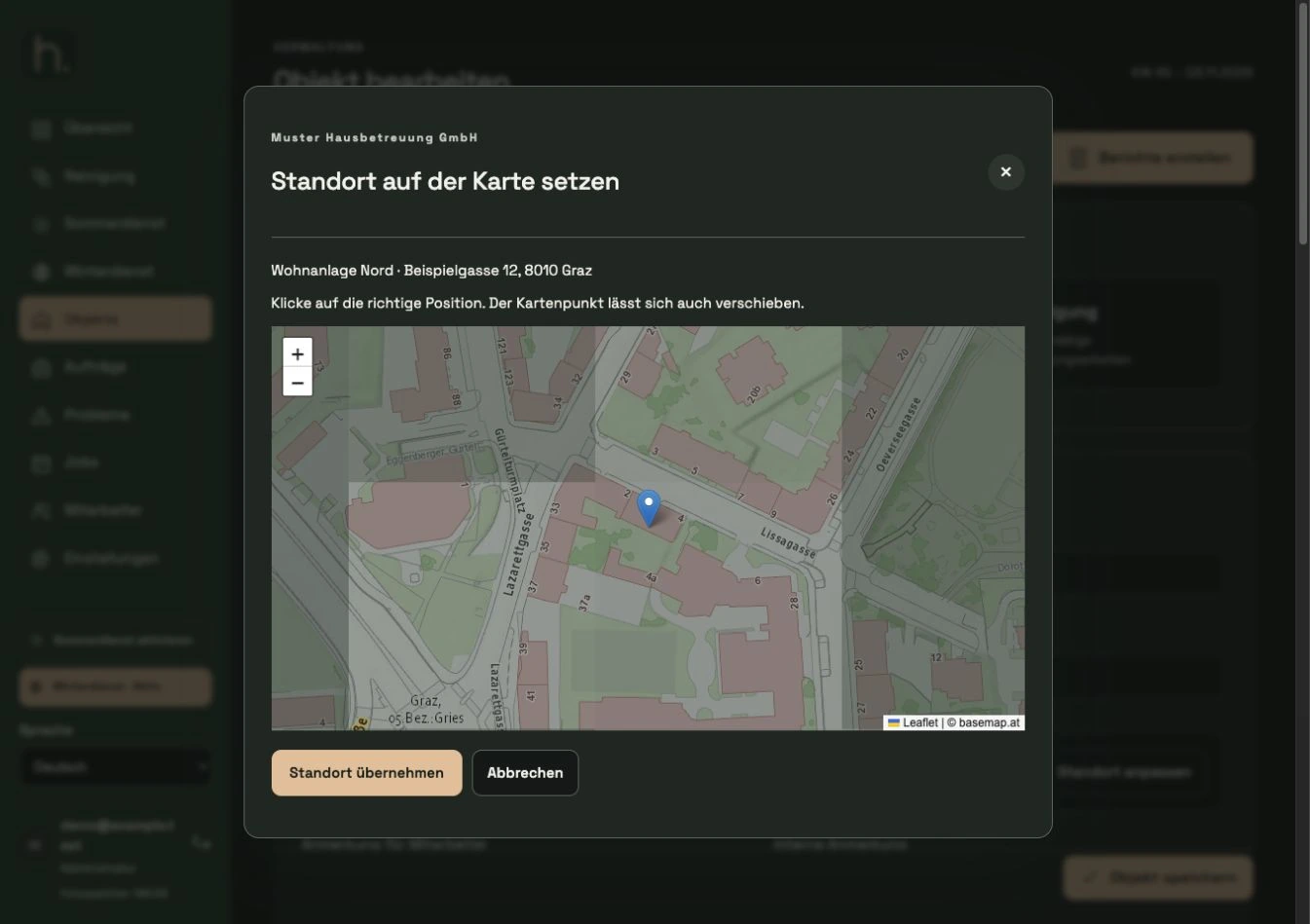
Open manual location
If the match is incorrect, select Adjust location. If the address fields have been changed previously, save them first if the form prompts you to do so.
Place map point correctly
Move or select the point so that it reflects the actual property access. If necessary, zoom in and check the surrounding streets.
Use location
Confirm the location change in the dialog. The location is then listed as manually adjusted. Check the position in the service area again.
Note navigation and tour
The saved map point is taken into account for the location display and the associated navigation. Changes can also trigger a new employee tour calculation.
Frequently asked questions
An property has no location. Is it just guessing?
No. A location that is not clearly found must be checked. Without usable coordinates, the property cannot be reliably classified on the map and tour.