
Employees · 2 minutes reading time
Send access data by email
Send an employee their full username, password, and available app links.
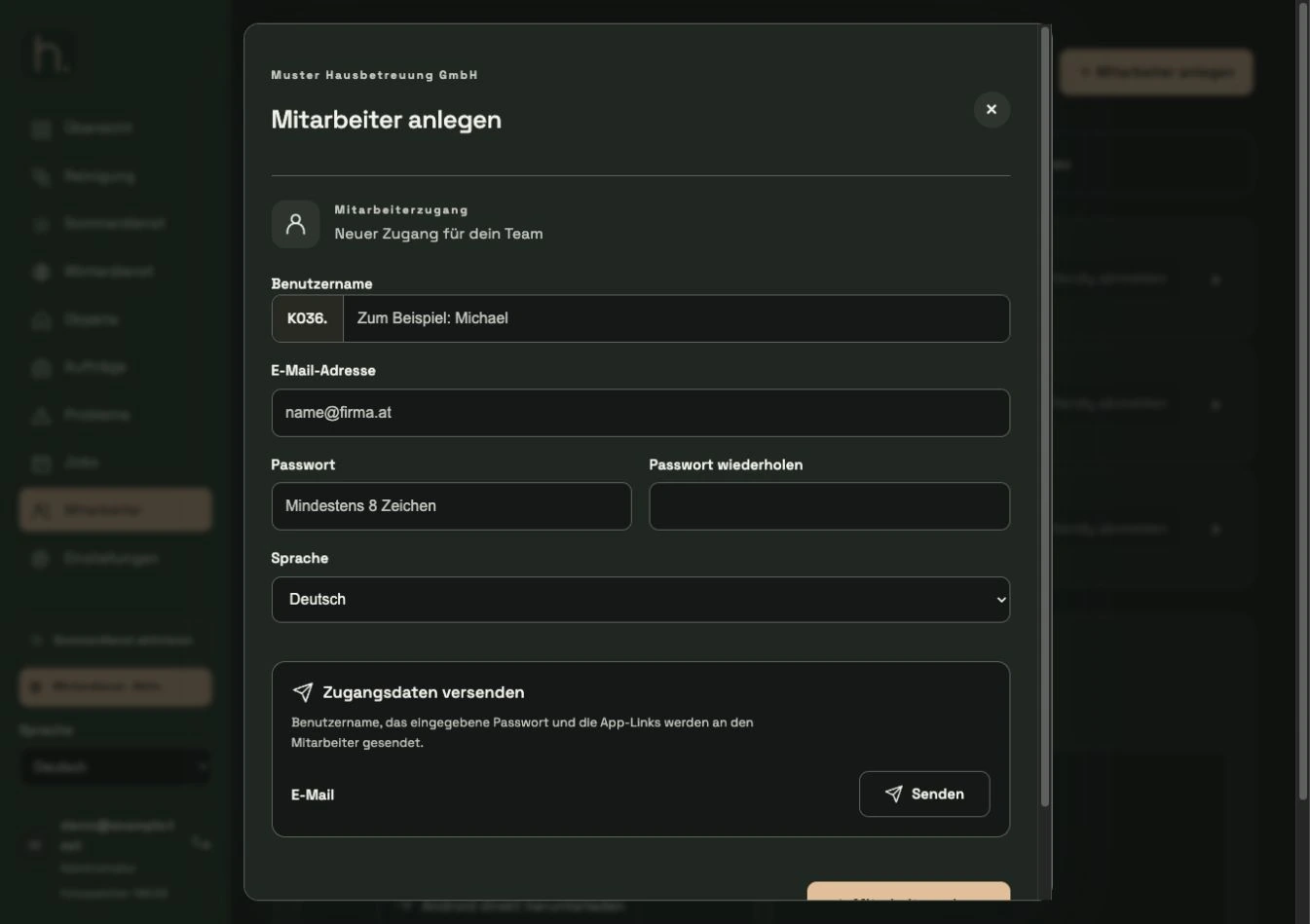
Open employee
Select the relevant employee in the overview. Please check in particular the name and the stored recipient address.
Check password
The saved employee password can be displayed in the editing form. To send, the password and repetition must be filled and match.
Correct recipient
Add or correct the email address. A single valid address is required, not a comma-separated recipient list.
Select Send
In the Send access data area, click Send. The employee is saved and the email is sent to the shipping service that has been set up.
Wait for feedback
Wait for confirmation. If the shipping status is unclear or an error is displayed, check the information before clicking again to avoid unnecessary double shipping.
Explain registration
The employee logs into the app with the full username and the password provided. Use the currently available download links from the employee area or email.
Frequently asked questions
The email is not in the inbox. What now?
Check address, spam folder and, if necessary, the central company quarantine. A shipping confirmation is not proof that it has been stored in your personal inbox.