
Properties & Customers · 2 minutes reading time
Store property images and plans
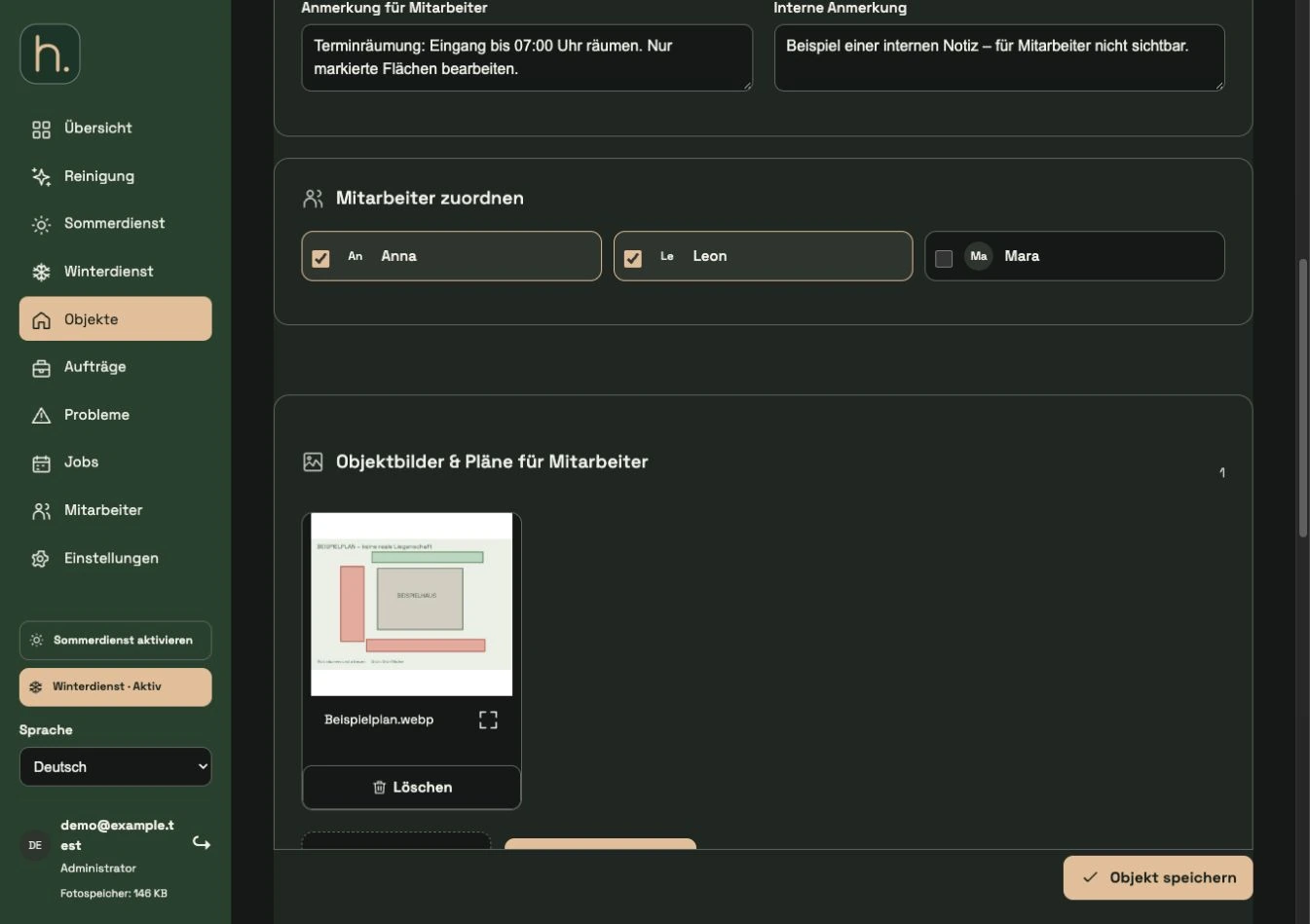
Save site maps and reference images directly to the property so your team can identify the right areas.
Open correct property
Open the property whose workspaces or accesses you want to document. Do not confuse permanent property plans with photo evidence of a completed job.
Select images
Select the desired image files in the Property images and plans area. Use the image formats offered in the file dialog. A PDF plan must be provided in advance as an image.
Save property
Save the property or confirm the intended upload. Wait for confirmation that the images have been completely saved.
Check display
Open a saved image and check whether highlights and labels are readable. On the employee page, a single image takes up the available width.
Replace outdated plans
As an administrator, specifically remove the old plan and upload the current version. Before deleting, make sure you are replacing the correct image.
Use in the app and in the printout
The employees find the pictures at the property. An existing property plan is also used in the winter route PDF on the associated property page.
Frequently asked questions
What is in the winter route PDF if there is no plan stored?
The property remains part of the route. To ensure that the printout contains a helpful plan, provide a suitable property image before downloading.