
Jobs & orders · 2 minutes reading time
Organize summer service and cleaning
Work with matching property lists, cards, services and recurring jobs.
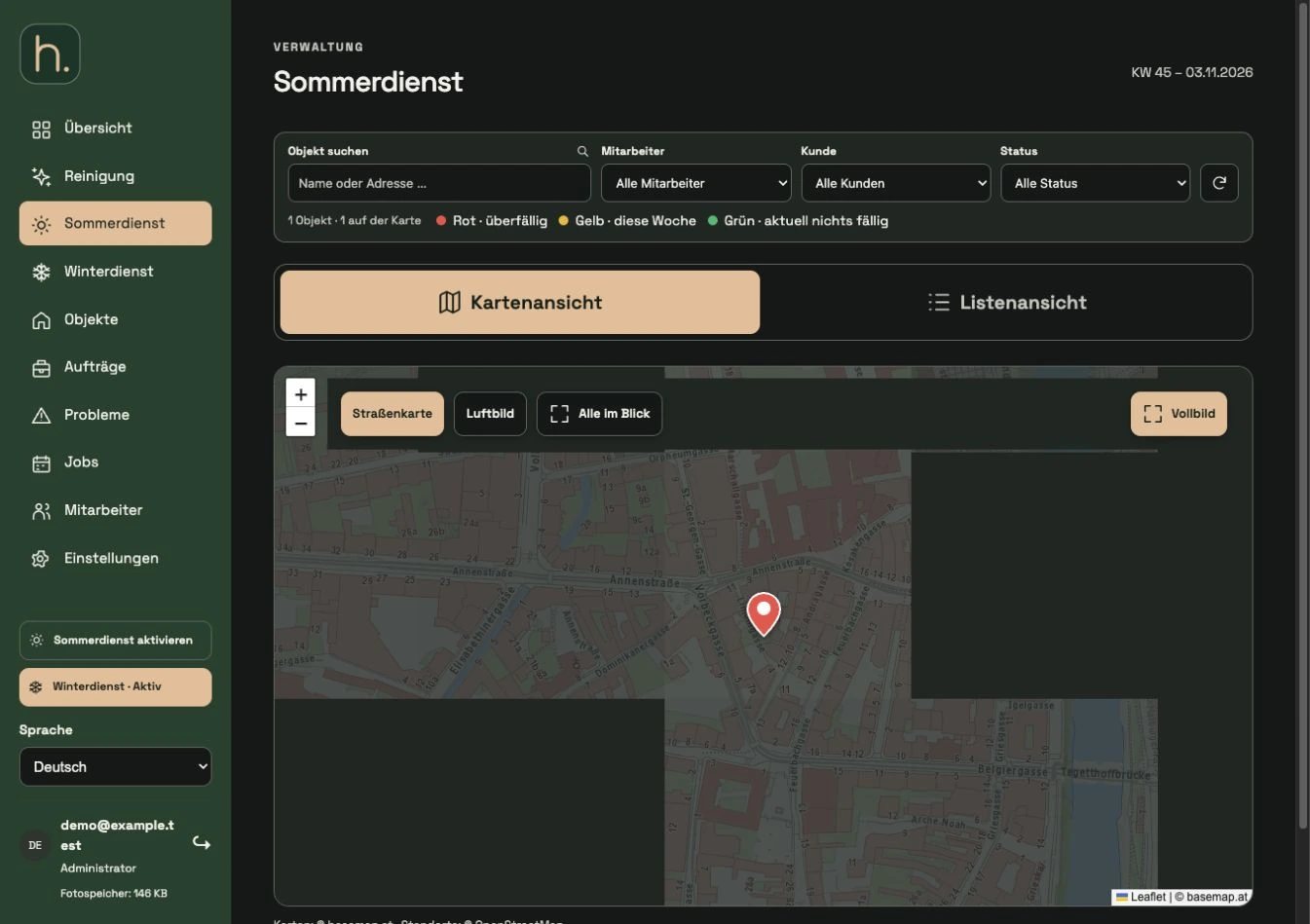
Open service area
Select summer service or cleaning. The view shows the properties intended for this area and their current work.
Use map or list
Switch between map view and list view. The street map is offered first; Aerial, All in View and Full Screen are available as additional views.
Search and filter property
Limit the display by search, customer, employee and status. Reset the filters if you want to see all matching properties again.
Deposit services
Open a summer property and select the activities offered such as lawn, hedge, weeds or leaves. In addition, cleaning can be activated on the property.
Plan specific work
Schedule jobs in the property by days of the week, calendar weeks or from a template. A checked service describes the property, but does not automatically create a job due for each day.
Check proof of work
Employees process the assigned tasks in their app. You can then find the photos in the photo documentation of the property and use them to create customer reports.
Frequently asked questions
Do I have to create my own company for cleaning?
No. You can manage cleaning in the same company area and, depending on the property, use it in addition to a seasonal service.