
Getting started · 2 minutes read
Ready to go in six steps
From the first company access to the completed order: This is how you set up Hausbetreuungssoftware sensibly.
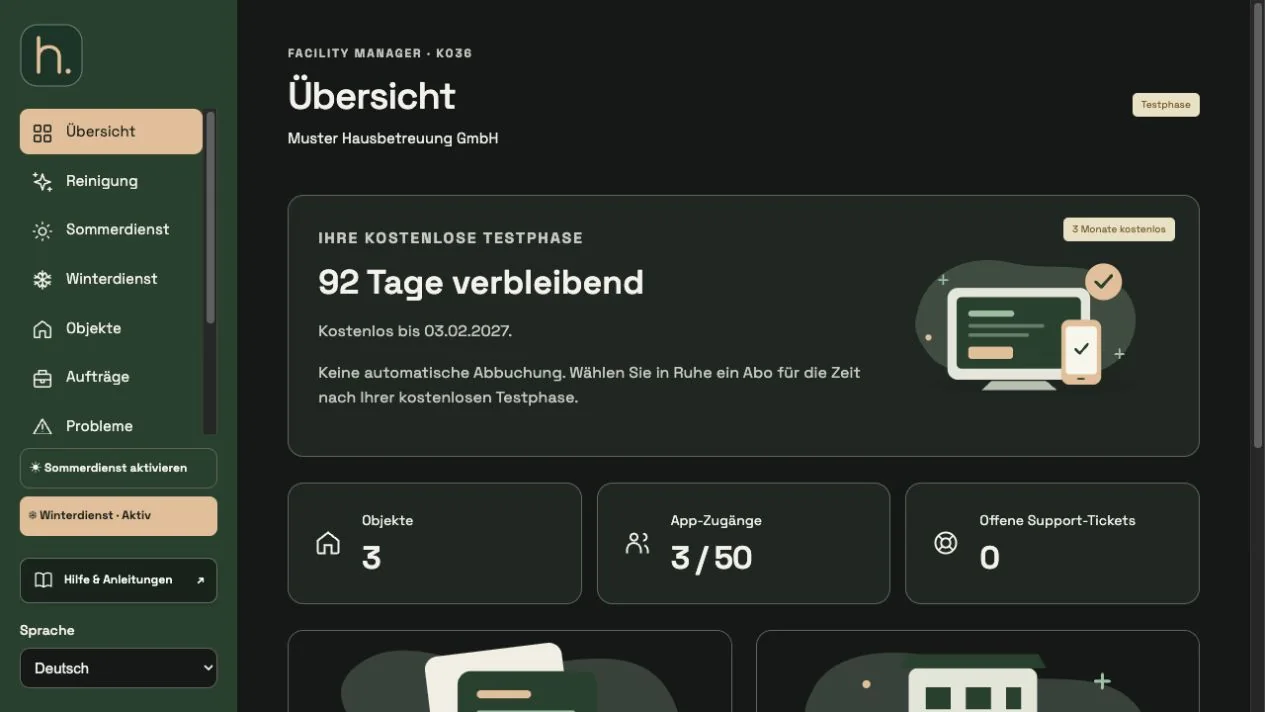
Check company data
Open Settings → Company Information. Check company name, contact person and billing address. This data forms the basis of your company area and your documents.
Select services
Under Settings → Services you determine which workspaces you use. Cleaning is generally available; Summer service and winter service can be shown or hidden for your company.
Create customers and employees
Enter your clients in the Customers tab under Properties. Then create the personal access for your team under Employees.
Capture properties
Create an property with service, title and full address. Assign the customer and the responsible employees. Then check the map location.
Schedule work
Store recurring jobs by day of the week or calendar week. For one-off work, use the Orders menu item. You can start winter operations separately under winter service.
Test app and evidence
Send the access data by email. The employee opens his order and takes a photo. After a successful upload, the job is completed. You can later create customer reports from completed work.
Frequently asked questions
Do I have to create a template first?
No. You can create jobs directly in the property. Templates save time when the same activities occur on multiple properties.