
Properties & Customers · 2 minutes reading time
Search properties and filter lists
Find properties by name or address and narrow the display by customer, employee or service.
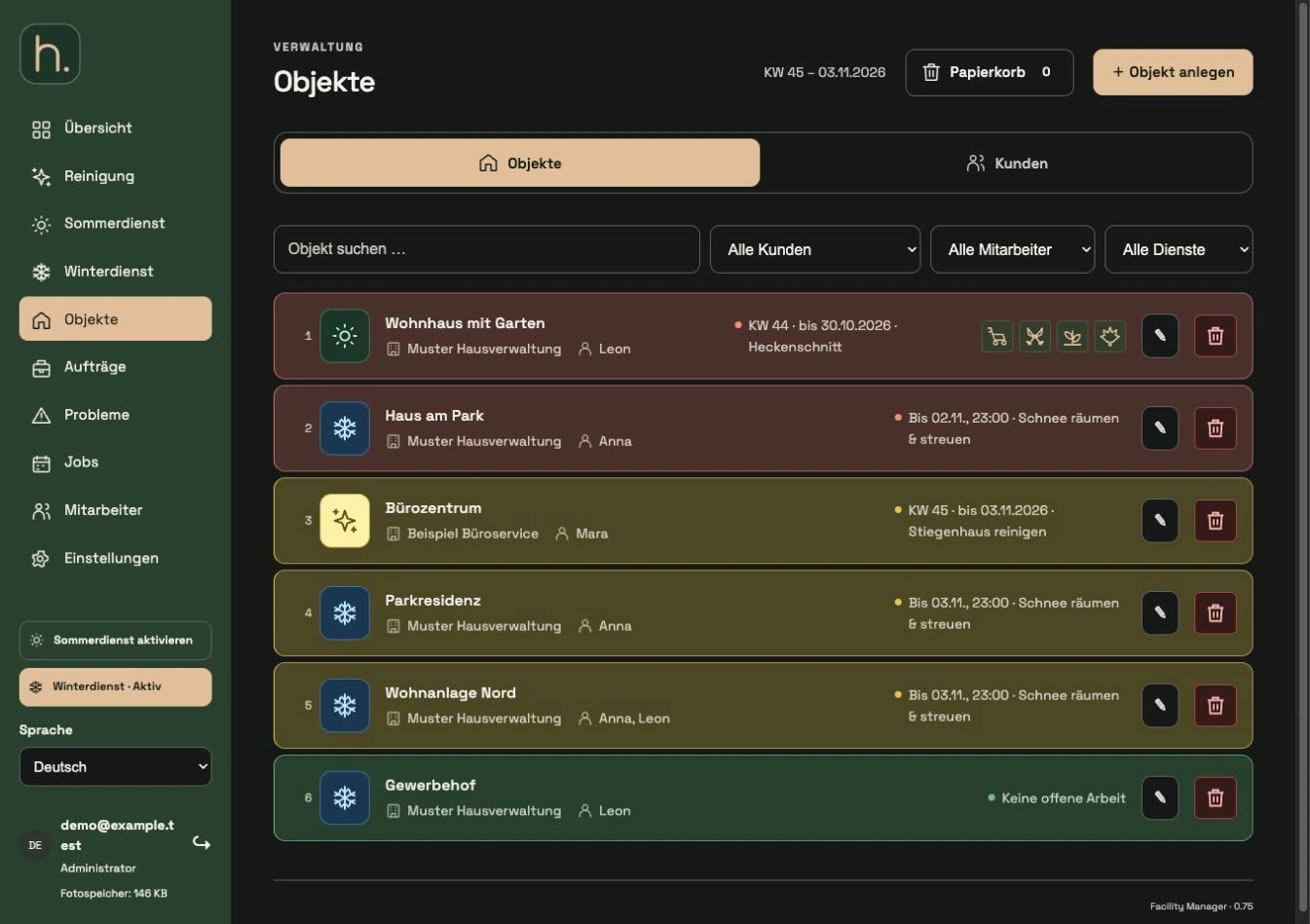
Open the relevant overview
Under Properties you can see the general administration. In cleaning, summer service or winter service, the display is already aligned to the respective work area.
Enter search term
Enter part of the property name or address in the search field. Even if an address is not additionally displayed in a compact line, it can still be used for searching.
Use customer filter
Select a customer to view their locations. You can use Without Customer to find properties whose customer assignment still needs to be completed.
Filter employees
Select an employee to check their assigned properties. The Without Employees selection helps you search for properties that have not yet been assigned, provided it is offered in the view.
Limit service or status
In the general property list you can filter by summer service, winter service or just cleaning. Service overviews also offer their respective status filters.
Reset filters
Reset filters when an expected property is missing. On a winter tour, the visible selection must also be checked before downloading a route.
Frequently asked questions
Does the number on the left mean the fixed property number?
In normal lists it is a sequential number of the current display. In employee tours, it refers to the order within the respective tour.