
Jobs & orders · 2 minutes reading time
Schedule jobs weekly by days of the week
Have a work repeated on one or more fixed days each week.
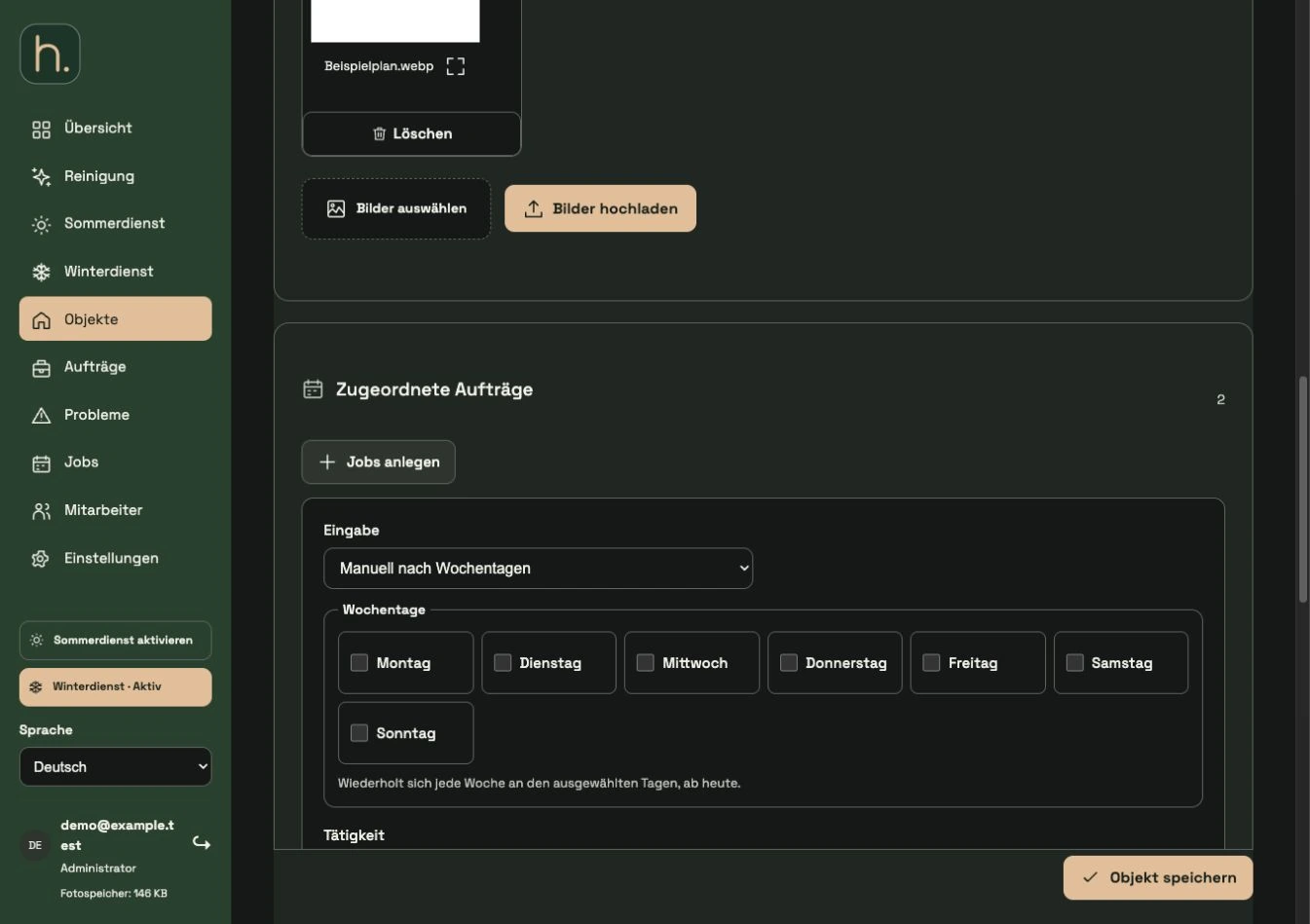
Open property
Open a summer or cleaning item and go to the Assigned Jobs section. Expand Create Jobs.
Select weekday planning
Under Input, select Manually by Days of the Week. The seven days of the week are displayed as a checkable selection.
Check working days
Select at least one day. With Wednesday a weekly Wednesday work is created; with Tuesday and Friday, work is due on both days each week.
Specify activity and responsibility
Describe the work, select the appropriate service and identify the responsible employee. Please note that cleaning may also be activated on the property if necessary.
Mark order and save property
Click on reserve order. The work initially appears as reserved in the property. After that, be sure to save the entire property form.
Check or stop repeat
Under Weekly Repeats you will see the saved series. You can mark the end of the repetition using End repeat; This change is also only applied when the property is saved.
Frequently asked questions
Why don't I see a permanent job after I reserve an order?
Reserve is an intermediate step in the property form. Only when you save the property does the marked work become binding.