
Jobs & orders · 2 minutes reading time
Create a one-time order
Schedule a single work with customer, own address, employee and calendar week or date with optional time.
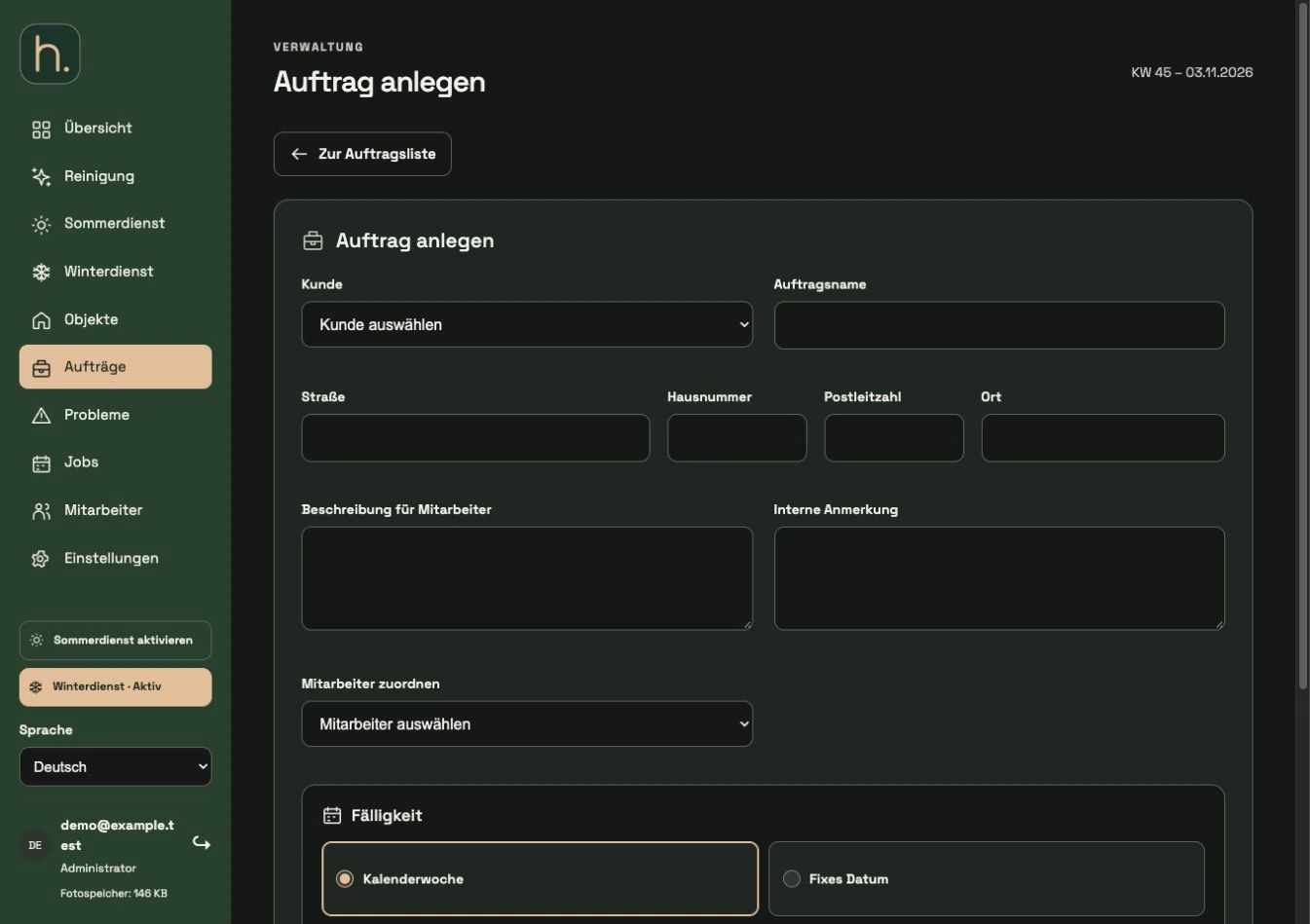
Open the order area
Select orders and click Create order. This function is intended for one-time work and does not require the creation of a new permanent property.
Name customer and order
Select the client and enter a understandable order name. Add the street, house number, zip code and location of the assignment.
Separate description and internal note
The description for employees is displayed in the app. Internal comments are for administration purposes and are not intended to replace any work instructions necessary for the employee.
Assign employees
Select the responsible person. The order is displayed to this employee under Orders in the app.
Set an appointment
Select calendar week and year or fixed date. If you have a fixed date, you can also enter a time, for example November 18th at 3:00 p.m.
Save and track
Click Save Order. Check the entry in the order list. After successful photo submission, the work is completed; the coloring shows planning, current due date or overdue.
Frequently asked questions
Where does the employee process the order?
In the employee app under orders. He opens the work, reads the description and takes the accompanying photographic evidence.