
Properties & Customers · 2 minutes reading time
Delete and restore properties
First remove properties that are no longer needed in the trash and restore entries that were accidentally removed.
Check property clearly
Search the property and check the title, customer and employee. For similarly named locations, pay particular attention to choosing the right one.
Move to Trash
Use the property's delete button and confirm the dialog that appears. The property is initially archived and hidden from normal worklists.
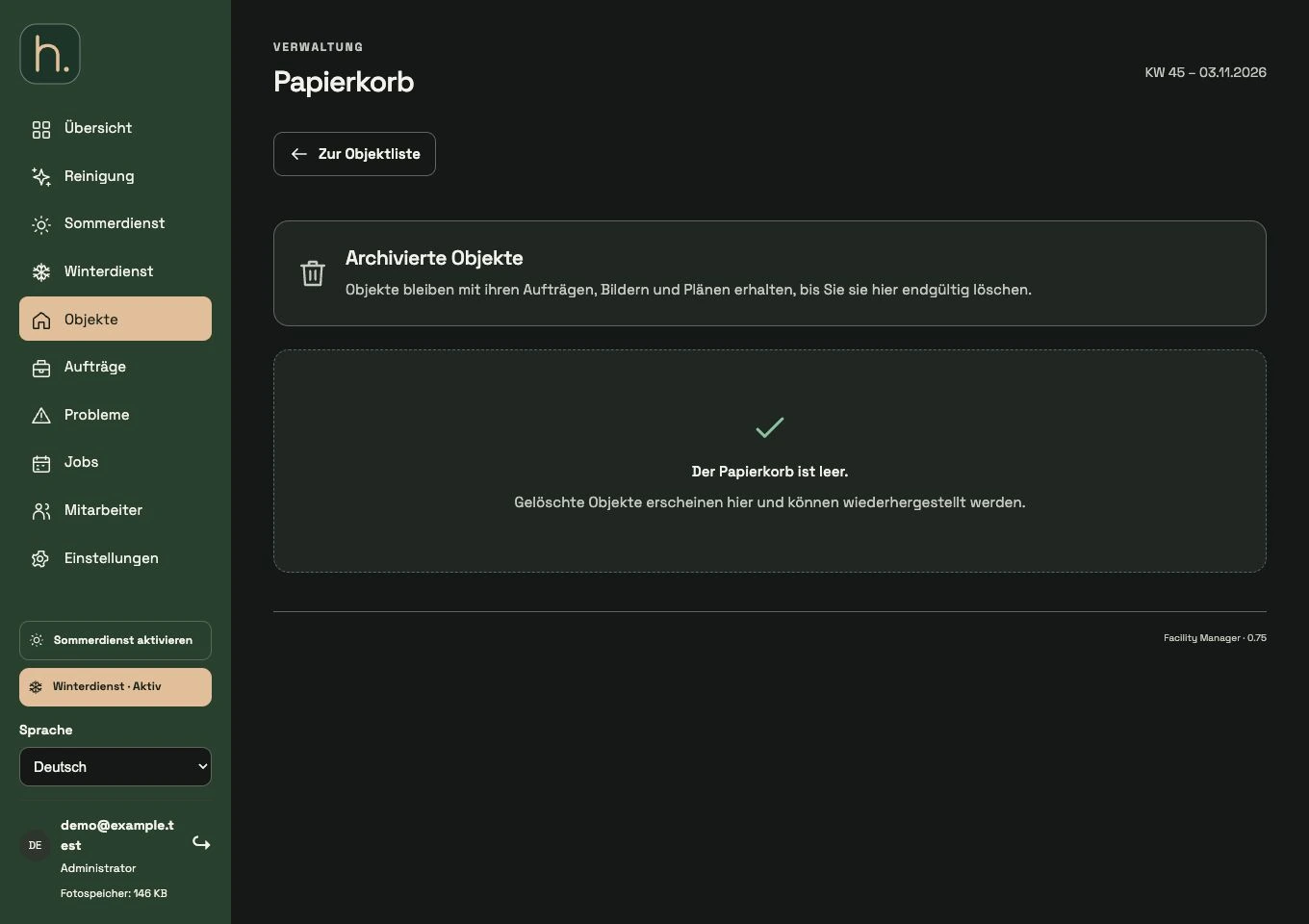
Open trash
In the property overview at the top, click Trash. The number on the button shows how many properties are there.
Restore property
Select Restore for the entry in question. Then check the property and customer assignment as well as existing tasks and the map location.
Check tour and repetitions
A restored item can reappear in rosters and winter tours. After the restoration, check which work still makes sense and is due.
Permanently delete only consciously
Only use delete permanently if you really want to permanently remove the entry displayed. Read the confirmation carefully; This action is not the normal Recycle Bin restore.
Frequently asked questions
Why can't I find the deleted item in the search?
Normal search shows active properties. Open the Trash to find archived entries.