
Properties & Customers · 2 minutes reading time
Create customers and contacts
Save your clients with contact person and email address so that reports are prefilled appropriately.
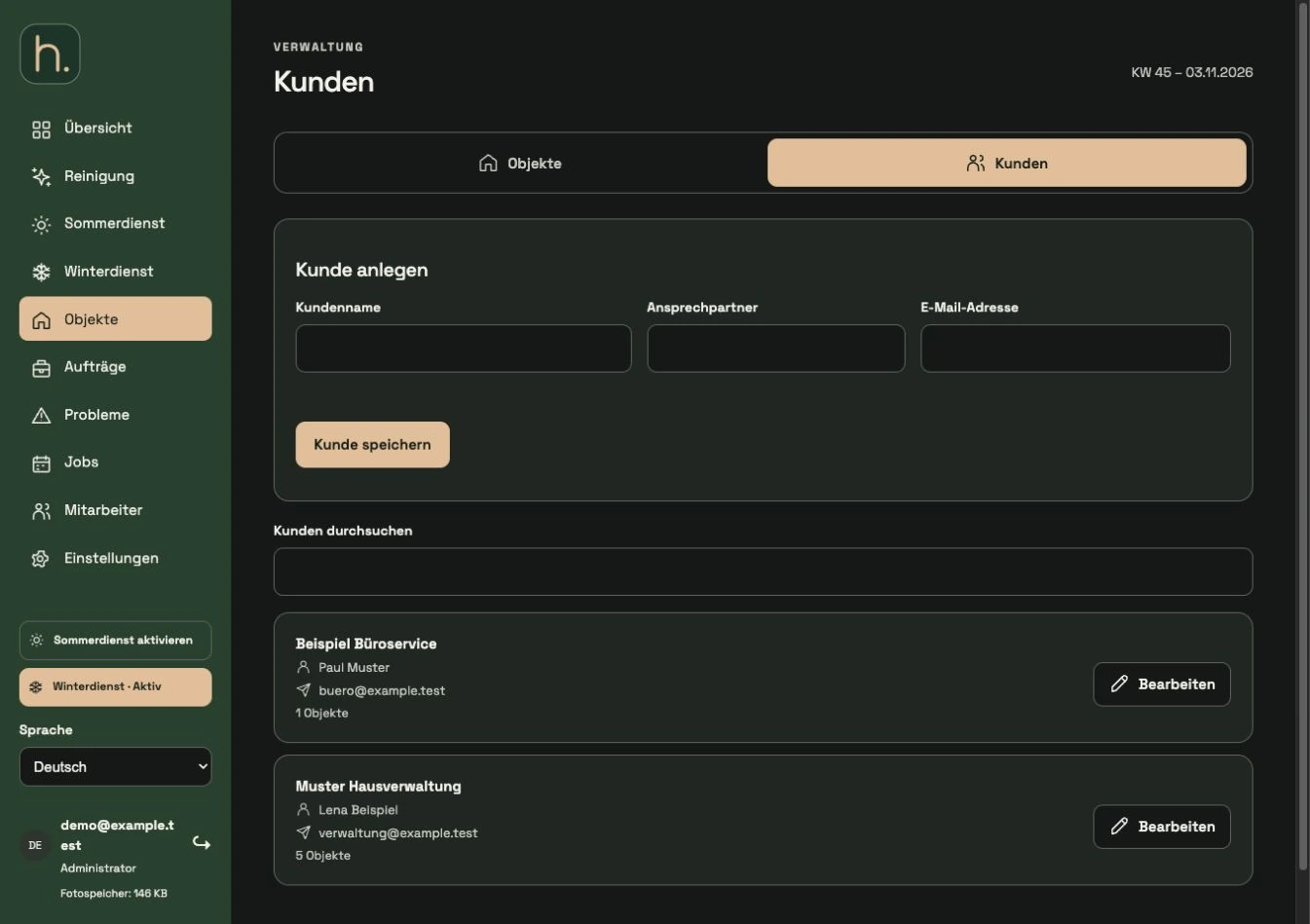
Open the Customers tab
Select Properties in the main menu and switch to the Customers tab at the top. Here you manage the clients of your properties, such as property management companies or companies.
Enter customers
Enter the customer name. If necessary, add the contact person and a valid email address. This does not change the company name of your own company.
Save
Save the entry. The customer is then available in the customer selection of properties and one-off orders.
Assign property
Open an existing property or create a new one. Select the appropriate entry in the Customer field and save the property.
Keep contact details up to date
Edit the customer entry if the contact person or email address changes. Please check the specific recipient address before sending a report.
Use report receiver
When creating an property report, contact persons and emails from the assigned customer are suggested. You can change this information for a single shipment without rewriting the customer base.
Frequently asked questions
Can a customer have multiple properties?
Yes. Select the same customer across all related properties. The lists can then be filtered by this customer.