
Getting started · 2 minutes read
Understand status colors and important terms
Read green, yellow and red correctly and distinguish between properties, jobs, templates and one-off orders.
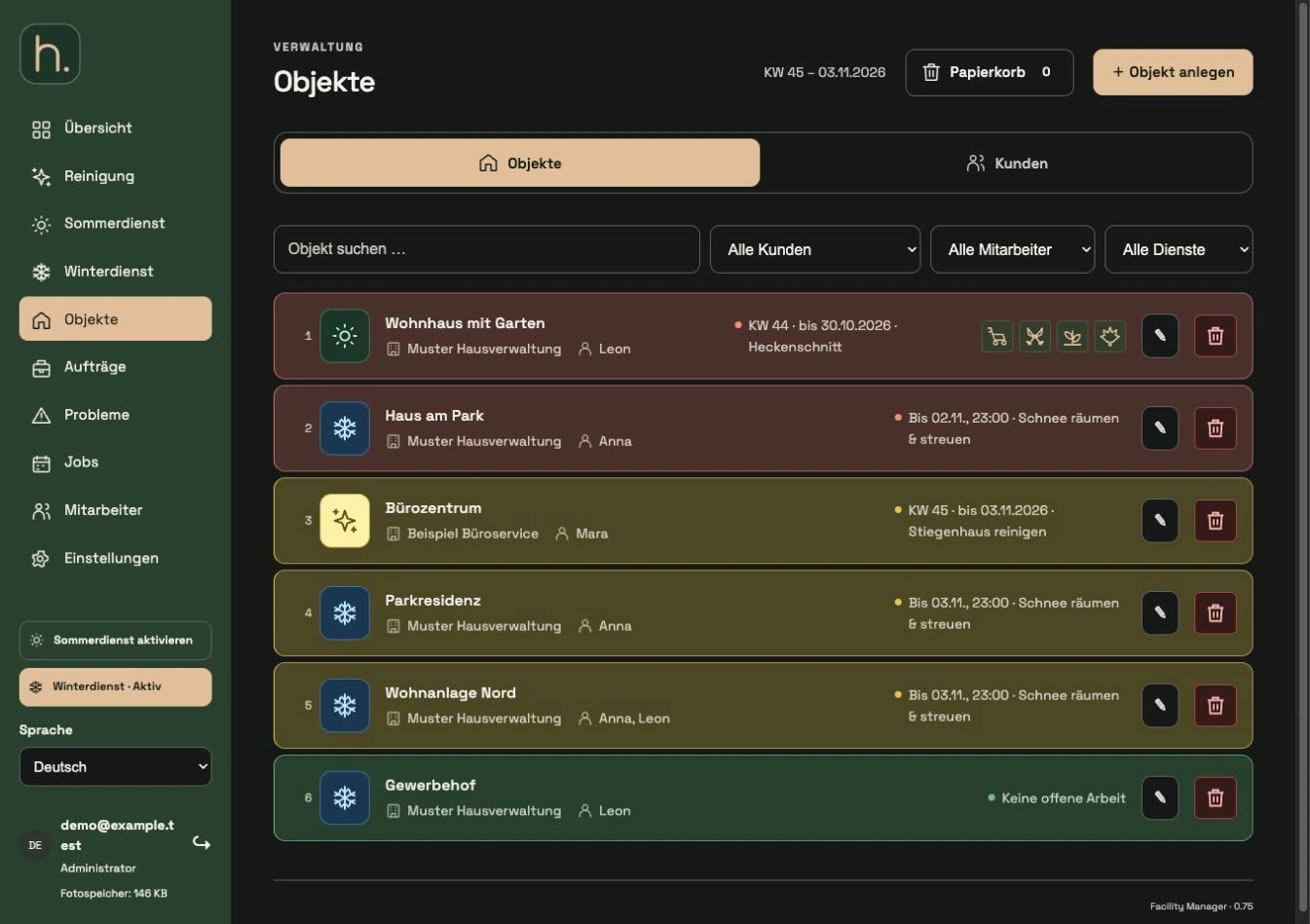
Understand property
An property is a saved, permanently managed location. It contains address, customer, responsibilities, notes and, if applicable, plans and associated work.
Differentiate between job and template
A specific job is work to be done with responsibility and deadline. A job template stores activity and time patterns, but does not create a task without property assignment.
Read green correctly
Green can mean that nothing is currently due, work is scheduled for later, or work has been completed. Therefore, read the text and the date in addition.
Read yellow correctly
Yellow stands for currently pending work. When planning a week, the current week is decisive; for a fixed daily order, the day and for winter operations, the current completion time window.
Read red correctly Click
Red indicates unfinished work whose due date or winter time window has expired. Correct appointment and employee allocation is important for this.
Differentiate numbers and reports
The tour number shows a position within an employee tour. The property report documents completed work on an property. The winter route PDF, on the other hand, is a working document for the planned tour.
Frequently asked questions
Does a green property line always mean that all work has been completed?
No. It can also mean that no work is currently due. Check the specific order and its status.