
Employee app · 2 minutes reading time
Install and log in the employee app
Use the available installation links and log in with the full employee username.
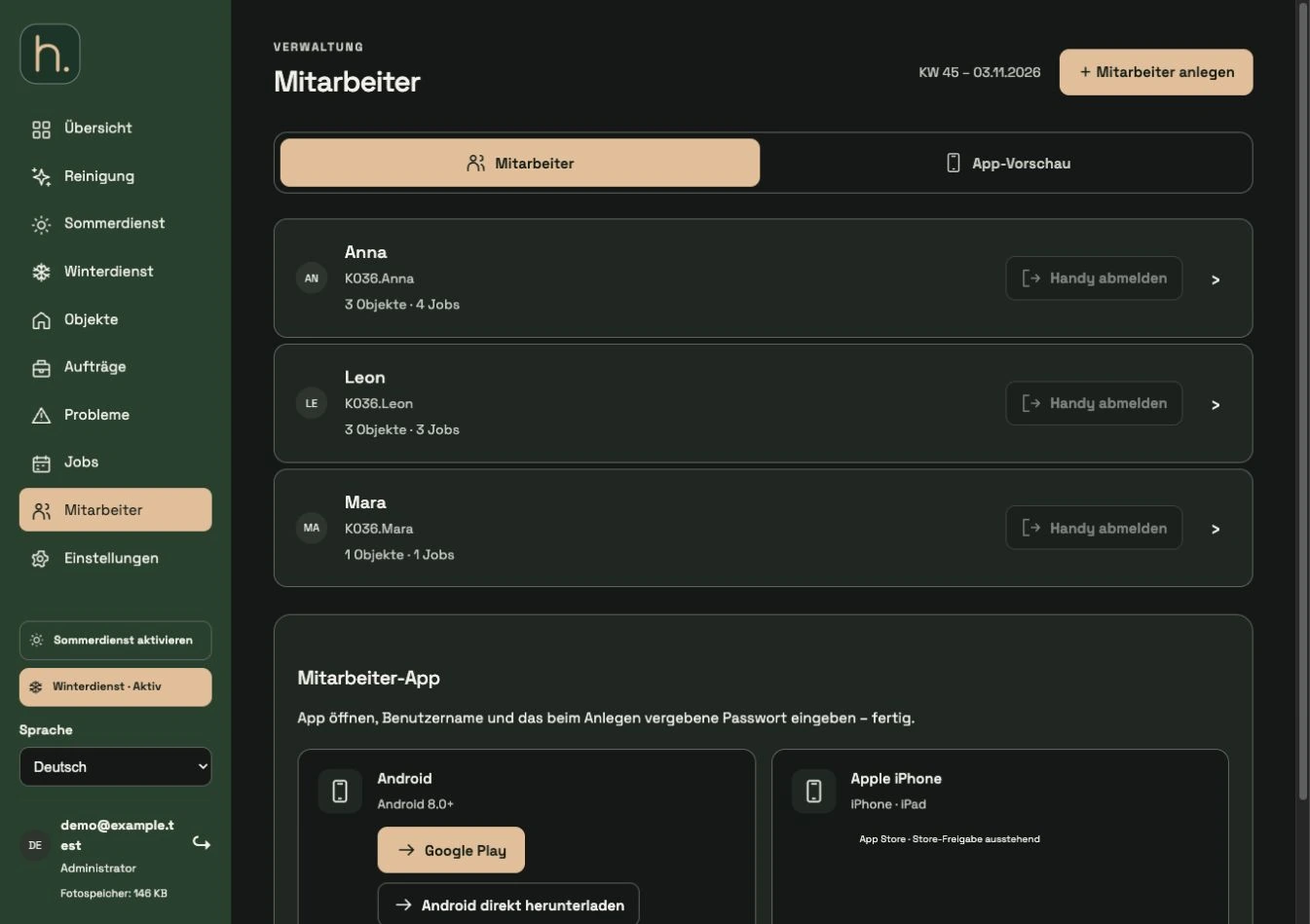
Request installation link
You can find the available app downloads in the employee area and in the access data email. Use the current links offered there.
Install Android
The published Google Play link is available for Android. A direct Android download is also offered. If possible, use the store link for normal installation.
Classify direct Android download
When installing via the APK, Android may require approval for the download source used. Just take the file from the official website and follow the device instructions.
Check iPhone link
For iPhone and iPad, use the Apple link activated in the system or the permitted test distribution provided by the operator. A pending store release will not be replaced by a website restart.
Enter full username
Log in with username and password. The user name contains the customer number, for example K036.Anna. Company administration access is not intended for this.
Check your own account
After logging in, check the company, employee name, language and assigned properties. If there is a report about access that has already been used, the administration may have to remove the old cell phone connection.
Frequently asked questions
Do I need a separate app for each company?
No. Up to ten valid employee logins can be saved in the same app, even from different companies.