
Jobs & orders · 2 minutes reading time
Create a job template
Save a recurring activity once and use it later on multiple properties.
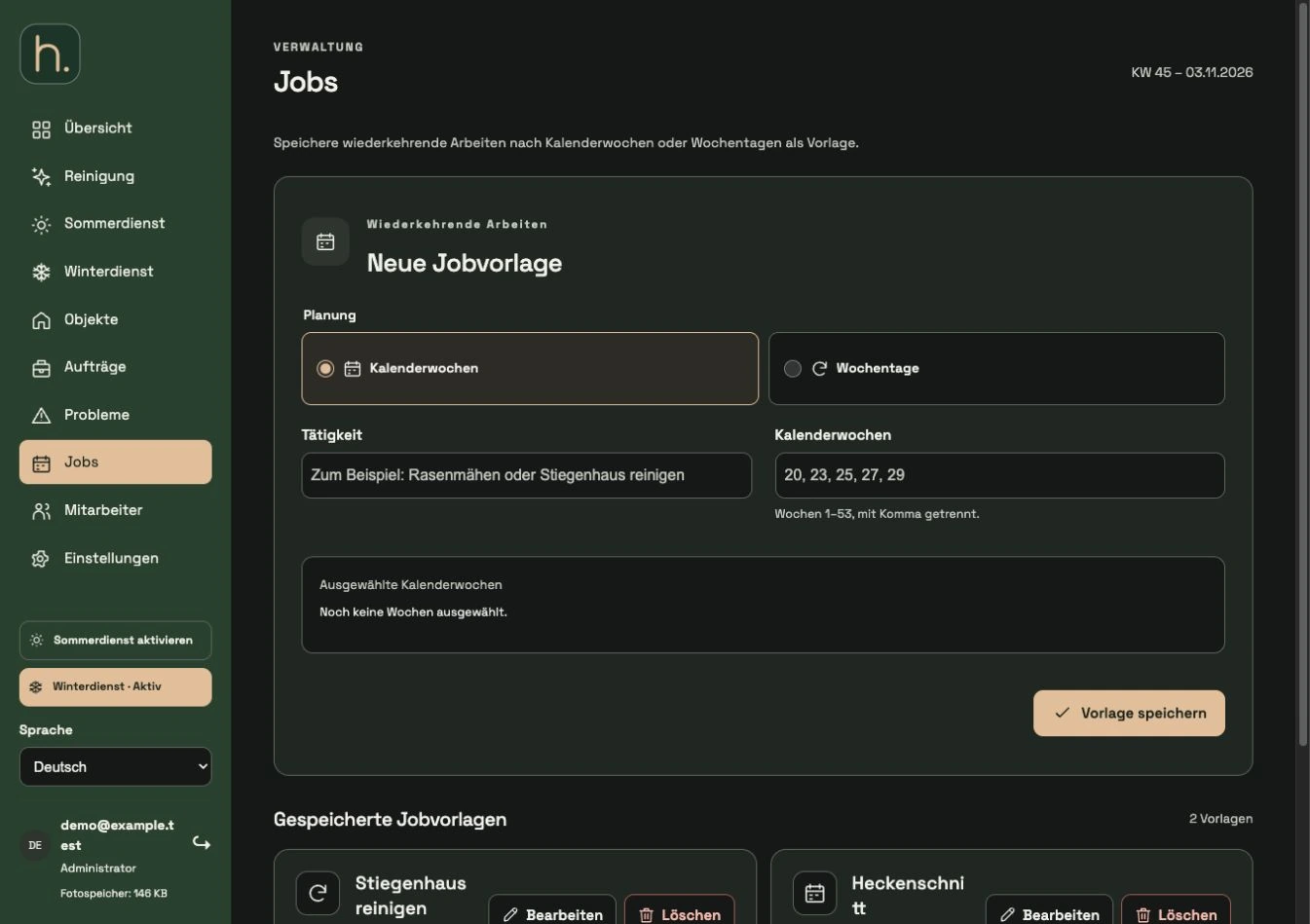
Open jobs
Select Jobs from the main menu. This is where you manage templates; The assignment to a specific property takes place later in the property form.
Define planning type
Decide between calendar weeks and weekdays. A template uses one of these two types at a time, not both at the same time.
Describe activity
Enter a clear title, for example hedge trimming or stairwell cleaning. The title should also be understandable for employees later.
Select times
For calendar weeks, enter the desired weeks separated by commas, such as 20, 23, 25. For weekdays, check the recurring working days, such as Tuesday and Friday.
Save template
Review the selection displayed and click Save Template. The template appears under Saved Job Templates.
Assign template to an property
Open the desired property, expand Create jobs and select Select finished job. Add performance, employee and, if applicable, year; then save the property.
Frequently asked questions
What do days of the week mean in a template?
The work repeats weekly on the checked days. The year field is not the central date selection for this recurring planning.