
Employees · 2 minutes reading time
Edit or remove employees
Change language and access data or remove an employee access that is no longer used.
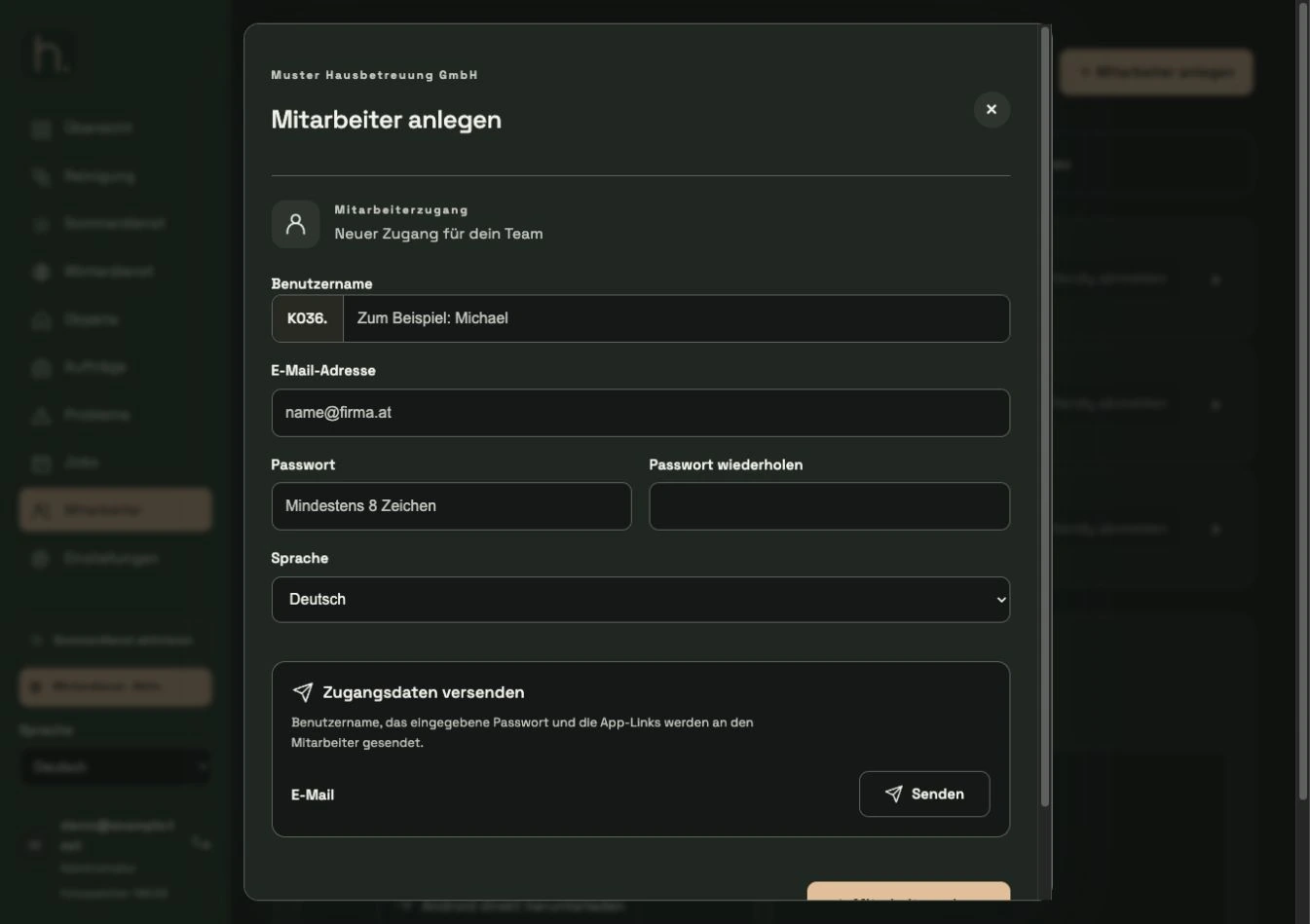
Open correct person
Select the employee in the overview. Check the full username and the list of its associated properties.
Change details
Customize name, email address or language. If you change the name, note the resulting full username for the app.
Change password consciously
Enter a new password and the same repetition if you want to change it. Check the information before saving and provide the current access data specifically.
Save changes
Click Save Changes. To send another email, use the separate Send button in the Send access data area.
Delete employees if necessary
If you no longer want the person to have access, use Delete Employee in the editing area. Check the name in the confirmation dialog and confirm the desired distance.
Check open responsibilities
Previous photo receipts and jobs are retained as history. Then check in particular open work and property assignments and reassign necessary responsibilities.
Frequently asked questions
Will all photo receipts be lost if the employee is removed?
No. The existing jobs and photo documents are retained. However, please check the further planning of work that is still open.