
Winter service · 2 minutes reading time
Start a winter mission
Create today's winter tasks for active winter properties and set the completion time window.
Prepare winter properties
Check whether the required properties are recorded as winter service and active for winter operations. Check employee assignments and important information before starting.
Start winter operation open
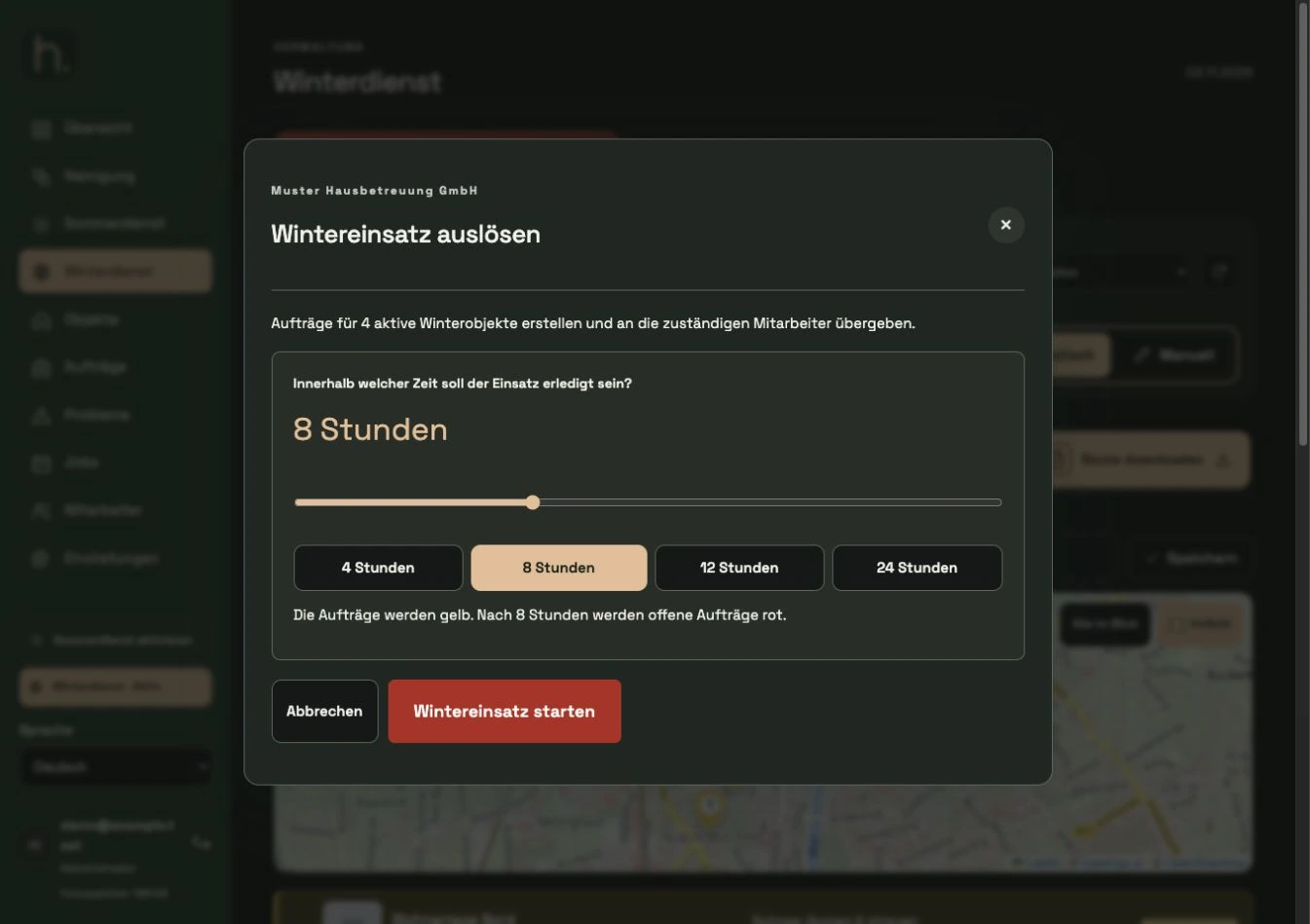
In the winter service, click on the conspicuous red Start winter operation button. A dialog shows the number of active winter properties taken into account.
Set time window
Choose the time within which the assignment should be completed. Use the controller or an hour selection offered. The display explains when open work turns red.
Confirm use
Check the selection and confirm the start in the dialog. Only now are today's winter orders created for the active winter properties.
Check app and status
The work appears in the app for the responsible employees. Open work within the time window is yellow; After expiry, unfinished work turns red.
Track progress
Control property and employee areas. Successfully submitted photo evidence completes the respective order. If planning is really wrong, use the separate cancel dialog.
Frequently asked questions
What does a time window of 0 hours mean?
Open winter orders are then immediately overdue and are displayed in red. The selection should therefore be made consciously.