
Employees · 2 minutes reading time
Create an employee account
Create personal app access with username, email, password and language.
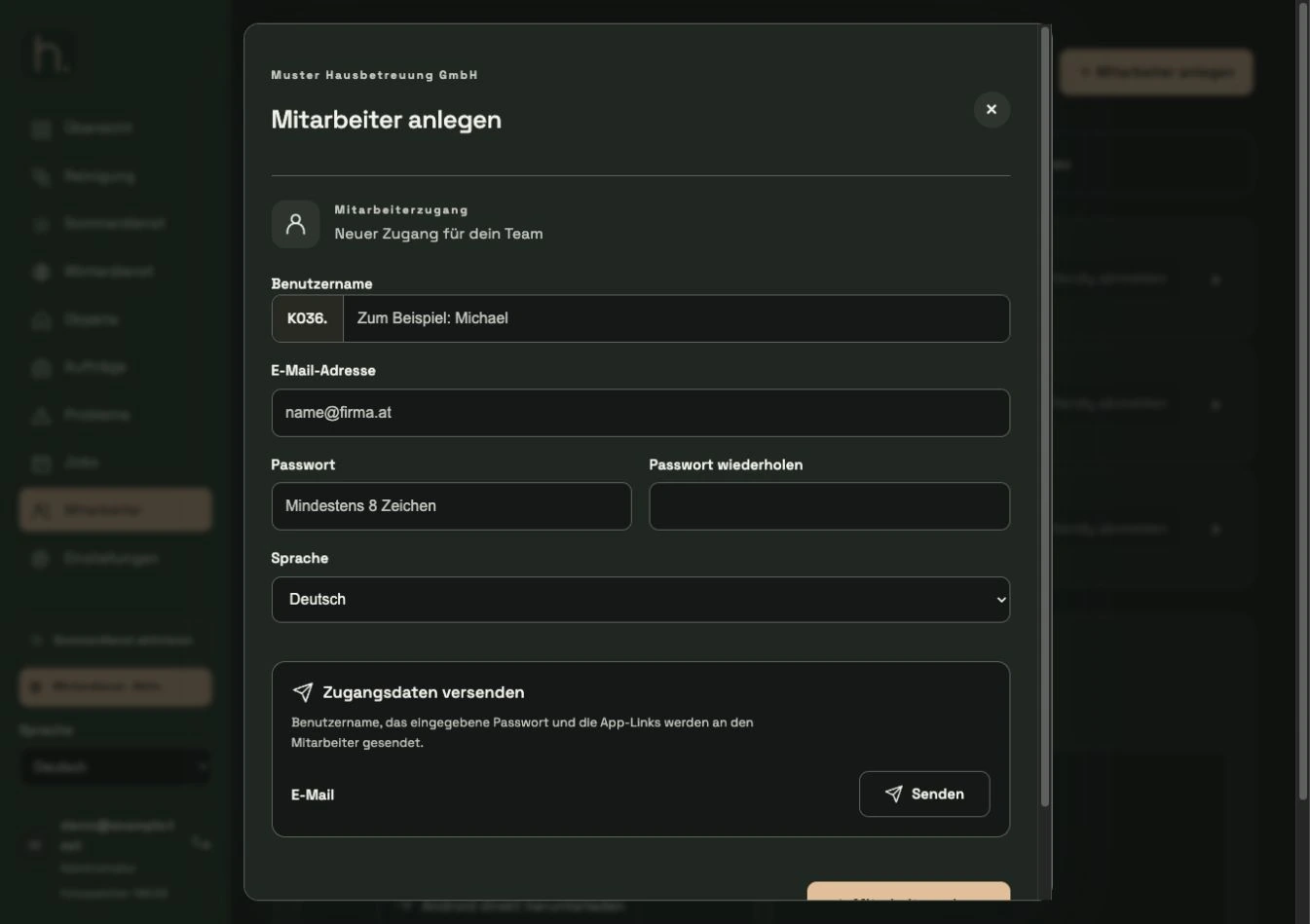
Open employee area
Select employees and click + Create employees. The same process can also be used for a personally responsible subcontractor.
Set username
Enter a unique name. The customer number is added as a prefix, for example K036.Anna. The employee will later need the full user name including the prefix.
Enter email and password
Enter the email address for sending access data. Enter the desired password twice, matching each other. The form states the minimum length required.
Select language
Select the language for this employee. This setting is independent of the language in which you use the customer portal.
Save access
Click on Create Employee. Alternatively, you can save via Send and send the access data by email if all the required information has been filled out.
Assign properties and work
Then open the desired properties and select the new employee. Additionally, check the responsibility of planned jobs and one-off orders.
Frequently asked questions
Can I use multiple company accounts in one app?
Yes. An employee can add up to ten valid accounts from different companies and later switch between them under Account.