
Jobs & orders · 2 minutes reading time
Edit or delete job templates
Change the activity and scheduling of a template or remove a template that is no longer needed.
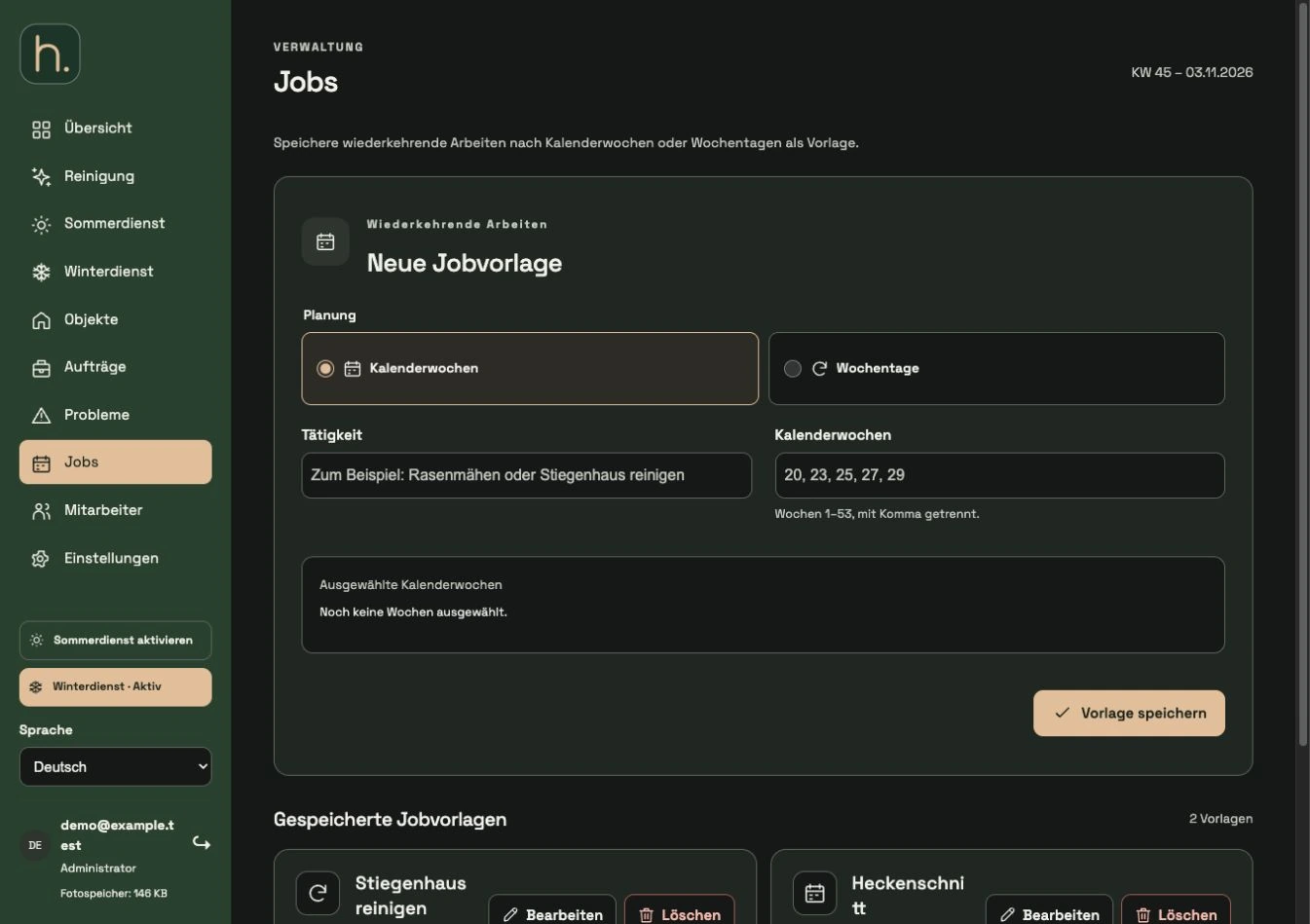
Find saved template
Open Jobs and find the correct entry under Saved Job Templates. The calendar weeks or days of the week displayed help with the distinction.
Select Edit
Click Edit on the template. The form switches to editing and displays the saved information.
Change activity and planning
Correct the title or switch between calendar weeks and days of the week. After a change, check the required selection again.
Save changes
Click Save Changes. The modified template is then available for future assignments. Cancel ends editing without accepting the new selection.
Delete template if necessary
Select Delete on the relevant entry. Read the query and only confirm if you want to remove exactly this template.
Manage existing work separately
Orders and repetitions that have already been created remain in place through a template change or template deletion. If these should also be adjusted, open the affected properties.
Frequently asked questions
Will photo receipts also be deleted with the template?
No. The template is separate from orders that have already been created and their evidence. The delete dialog indicates that existing work will remain.