
Employee app · 2 minutes reading time
Work and take photos in the app
Open assigned properties or one-off jobs and document the work with the camera.
Open area
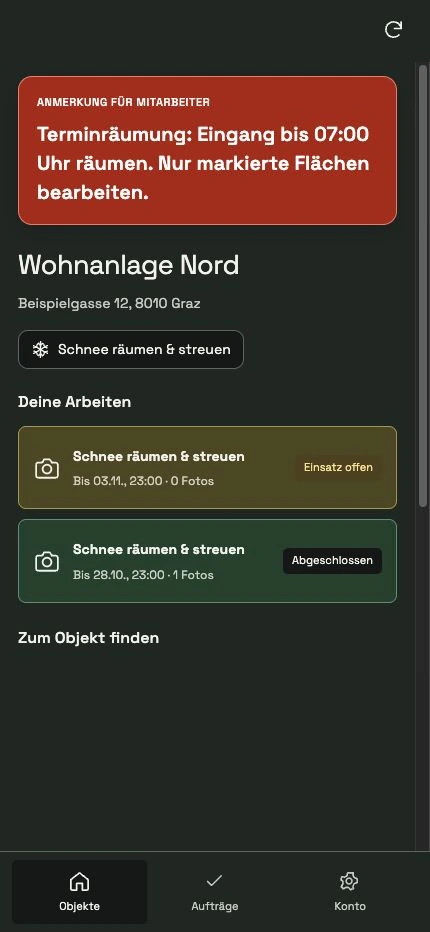
Under Properties you can see your assigned locations. Under Assignments you will find the one-off work assigned to you. The bottom navigation remains accessible when changing areas.
Read notes first
Open the property. The note for employees is displayed prominently when it is stored. Read information about clearing dates, access or work areas before you start.
Select specific work
In the Your Work area, open the appropriate activity line. The camera symbol shows where the photo capture begins. Check activity and due date.
Take photo
Select Take Photo and allow the requested camera on your device. The real apps are intended for fresh camera recordings on site.
Wait for upload
Wait for successful submission. Only a saved photo document documents the work in the system and automatically completes the job. If you make a mistake, use the retry provided.
Use plan and navigation
In the property you can view saved plans and open navigation. You can report a problem via Report a problem in the property overview. Reload the view if necessary using the icon in the top right.
Frequently asked questions
Can I add more photos after the first photo?
Yes. A successful first upload completes the work; Additional suitable photo evidence can then be added.
Which map does the app open?
Google Maps is available for navigation. Apple Maps is also offered in a correspondingly updated native iOS version.