
Photos & reports · 2 minutes reading time
A system email does not arrive
How to check recipients, shipping status and possible company filters without sending unnecessarily multiple times.
Check the recipient address
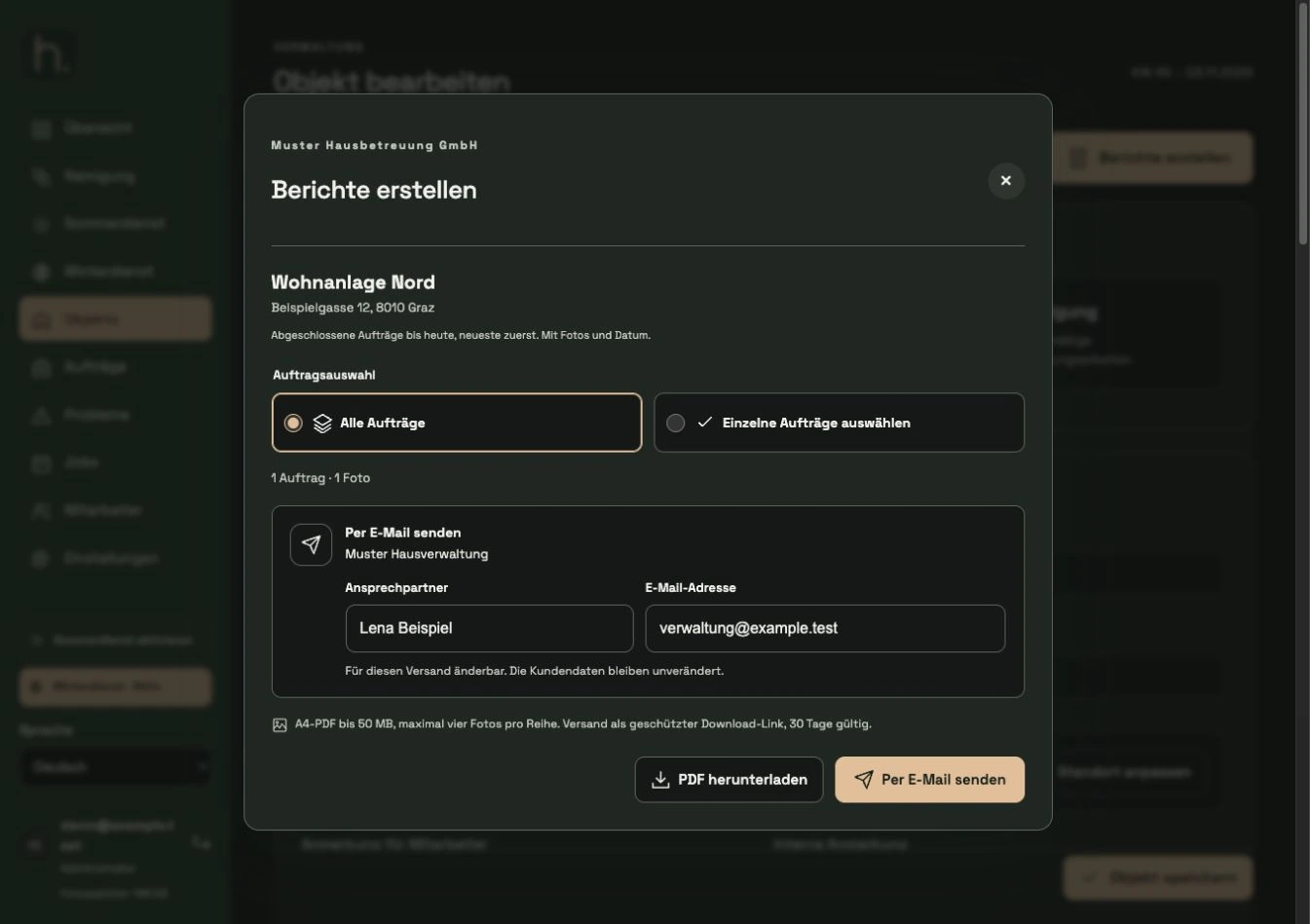
Check the actual email address entered for typos. In the case of reports, a different address than that stored in the customer master may have been entered for an individual shipment.
Wait for processing
Read the displayed status. Check shipping status can be offered in a report. If the status is unclear, you should not immediately trigger several identical emails.
Check spam and quarantine
Have the recipient check the spam folder. Companies may also have a central quarantine or internal filter rule that only the IT administration sees.
Find the correct message
Tell the recipient the subject, time and sender. System emails are sent via office@hausbetreuungssoftware.at; a manual forwarding from your own company address is technically a different sender.
Classify the download for reports
Report emails no longer contain a large PDF attachment, but rather a protected link. The link is valid for 30 days and is not consumed by the pre-verification of a security service.
Request support using the search data
If the message is still missing, send the affected recipient address, the time of sending and the type of email to support. This allows the handover to be checked more specifically in the delivery record.
Frequently asked questions
Does a download link guarantee delivery?
No. It keeps the message small and avoids a PDF attachment. Sender, security and company rules can still affect the email.