
Settings · 2 minutes reading time
Set services used and active season
Show required service areas and select the active seasonal work for the employee view.
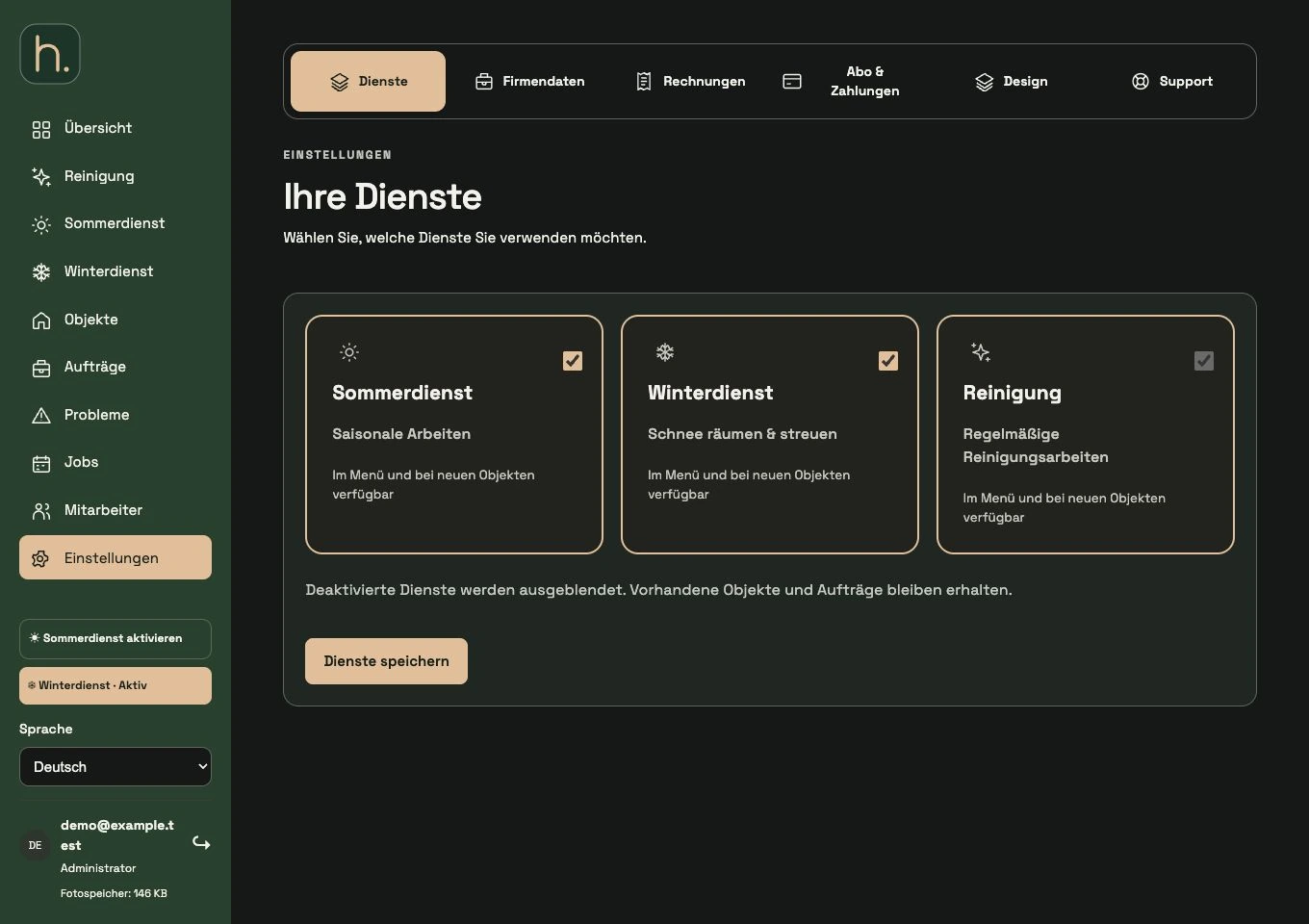
Open Services
Open Settings → Services. Here you determine which areas your company uses in the system.
Select summer and winter service
Enable or disable the seasonal services you need. Cleaning is generally available and remains switched on in the current form.
Save services
Confirm with Save Services. Deactivated areas are hidden accordingly in the navigation and for new properties.
Note inventory data
Disabling a service does not delete existing properties and jobs. If entries appear to be missing, check this setting first.
Select active season in the menu
In the lower menu area you can switch between the available seasonal services. Active duty influences the associated employee view.
Check property type separately
Summer service and winter service are mutually exclusive at the individual property. Cleaning can be used additionally. The operational setting and the specific property type must therefore be checked separately.
Frequently asked questions
Does deactivating winter service delete all winter properties?
No. The service is hidden; the existing properties and orders remain saved.