
Photos & reports · 2 minutes reading time
Edit problem reports from the app
View feedback from the deployment site and track their processing status in the customer portal.
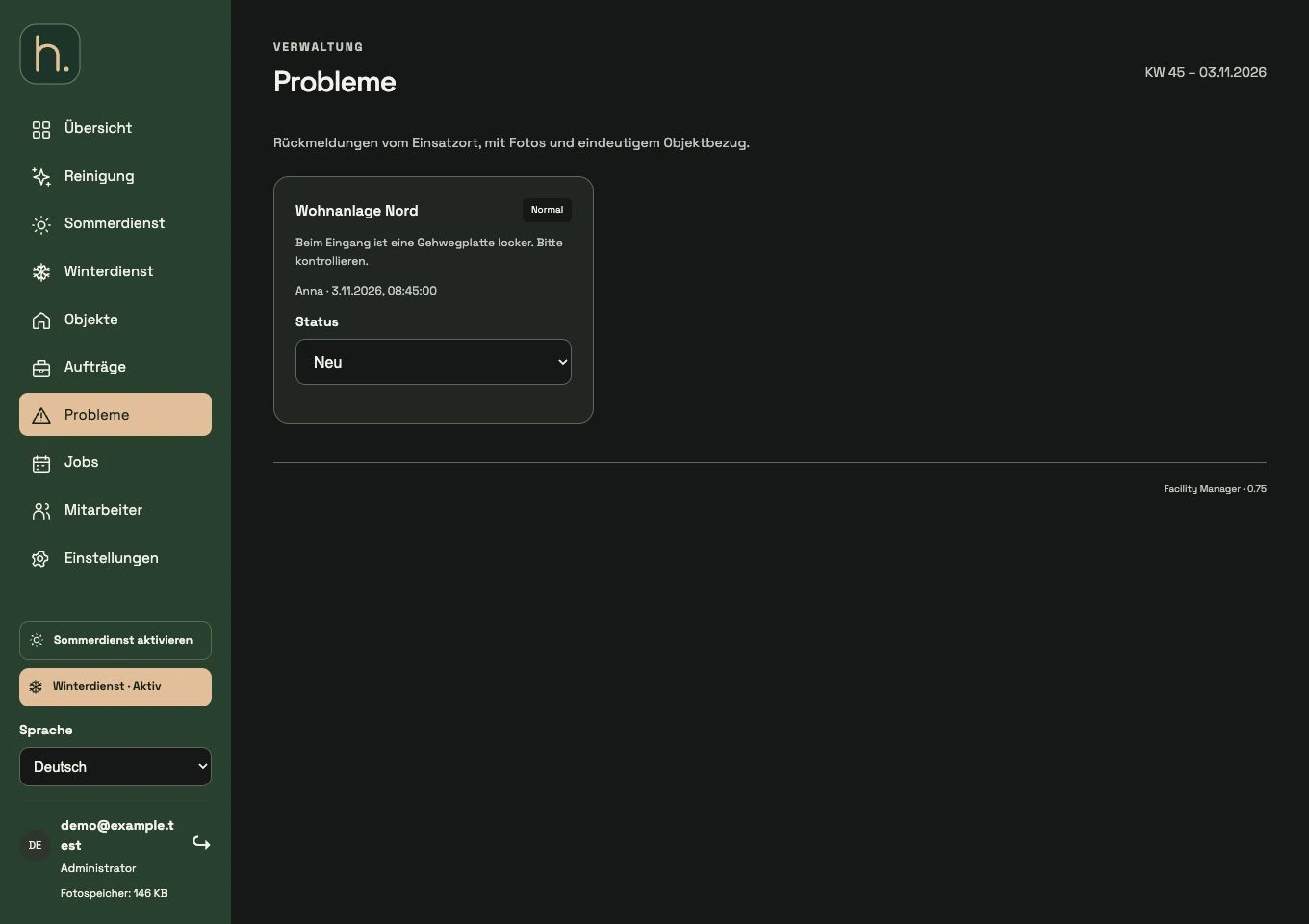
Open problem area
Select issues in the customer portal. The entries have an property reference and show the description, reporting person and the time of entry.
Classify urgency
Check whether the message was recorded as normal or urgent. Read the description before organizing editing.
View pictures
If photos are attached, open the thumbnails for a closer inspection. A report can also exist without a photo.
Set status
As an administrator, you can change the status of the message. Use the processing statuses offered to make the progress understandable for your internal organization.
Plan work separately
If the report creates new work, create a suitable job or a one-time order. A change in the status of the message does not replace this specific task planning.
Differentiate with support
Problems concern feedback from the property. For questions about the software, use Settings → Support. This means that the technical report remains separate from the software support.
Frequently asked questions
Where does an employee report a problem?
In the app he opens the property and selects report problem. He adds description and urgency and can assign the photos offered.