
Photos & reports · 2 minutes reading time
Send a report via download email
Send your customer a small email with a protected download link instead of a large PDF attachment.
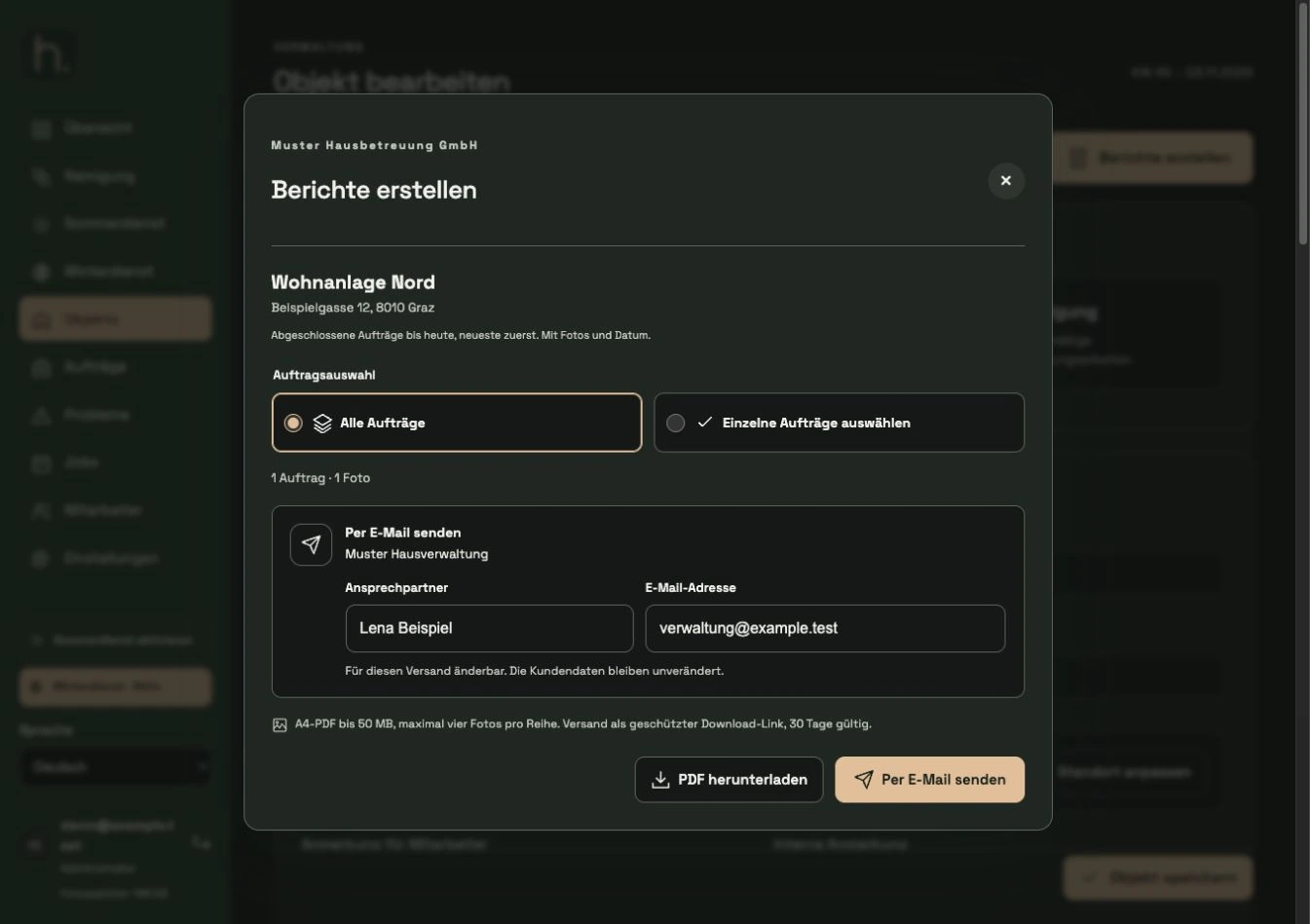
Compile report
Open Create Reports on the correct property. Select all or individual completed work and control the scope of the documentation.
Check contact person
The contact person is suggested from the customer stored on the property. You can enter a different name for this shipment.
Check recipient address
Check the pre-filled email address. You can use another single address for this shipping. The stored customer data therefore remains unchanged.
Send via email
Select Send by Email. The system creates the report and sends a short message with a download button and a readable replacement link to the shipping service.
Wait for shipping notification
Let the processing complete. If you wait longer, you can check the shipping status offered. Don't rush to repeat the send if the status is still unclear.
Download to the recipient
The recipient opens the link and downloads the PDF without registering. The link is valid for 30 days and can be used multiple times within this period. After expiry, create and send a new report.
Frequently asked questions
Is the PDF still attached to the email?
No. The email remains small because the report is available as a protected download on the server. Therefore, reports larger than 5 MB are also possible.
Does sent successfully mean that the customer has read the email?
No. A shipping notice does not confirm personal delivery or read confirmation. If emails are missing, spam filters or a central company quarantine may be involved.