
Jobs & orders · 2 minutes reading time
Schedule jobs by calendar weeks
Schedule work for specific calendar weeks of a selected year.
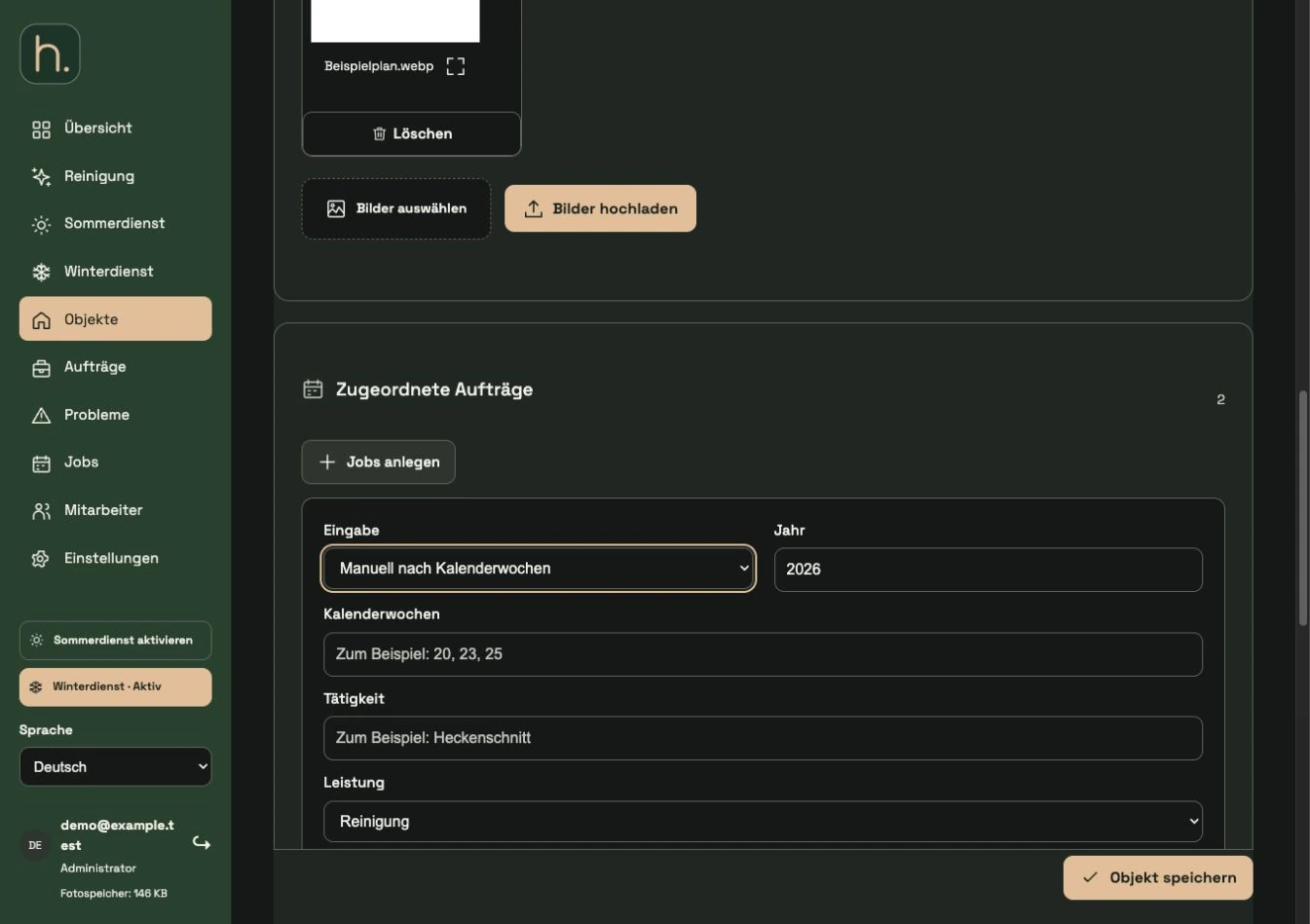
Open job area
Open a suitable summer or cleaning property and expand the Create jobs area in the Assigned jobs section.
Select calendar weeks
Set entry to Manual by calendar weeks. The year and calendar weeks then become available for entry.
Enter year and weeks
Enter the correct year and separate the weeks with a comma, for example 20, 23, 25. Only valid calendar weeks of the selected year can be adopted.
Describe work
Add activity, performance and responsible employee. A clear job title helps in the portal, in the app and later in the documentation.
Mark and save
Click on reserve order. Check the marked lines and then save the property to create the planned work.
Check due date
Check the week information in the created jobs. Calendar week planning is not an automatic annual repetition and does not replace an expressly set date or time.
Frequently asked questions
What does a calendar week mean for the display?
The weekly planning is displayed due in the current calendar week. Work that has not been completed will become overdue after its scheduled deadline.